ABRSM Recorded Practical Exam: Enrolment and Upload
ABRSM recorded Practical Exam enrolment guide for Hong Kong candidates: account login, exam selection, candidate details, payment and file upload.

ABRSM’s recorded practical exam booking is not finished when you pay. The online portal first confirms the booking, then you still need to use Submit Files to send the recording and required forms before the deadline.
This guide follows the ABRSM portal screenshots captured on 10 June 2026 and is written for Hong Kong users booking a recorded practical route such as a Digital Instrumental/Singing or Performance Grade exam.
Start from the ABRSM public venue and digital exams portal: https://portal.abrsm.org/PublicVenue.
If you have registered with ABRSM before, choose Login on the first screen instead of creating a new account. This helps keep previous candidates, bookings, and results linked to the same profile.
Before you start
Have these ready before opening the booking form:
- ABRSM account email address, username, and password
- applicant first name, family name, date of birth, and National ID number
- candidate official English name
- candidate date of birth and National ID number
- candidate email address
- instrument or subject
- practical recorded exam route and grade
- any access arrangement or specific need
- postal address and phone number
- payment card or PayPal access
- discount code, if you have one
- final recording, programme information, and declaration details for the later file upload
For Grade 6-8 instrumental or singing exams, check the prerequisite before ticking the ABRSM regulations confirmation.
Recorded practical exam flow
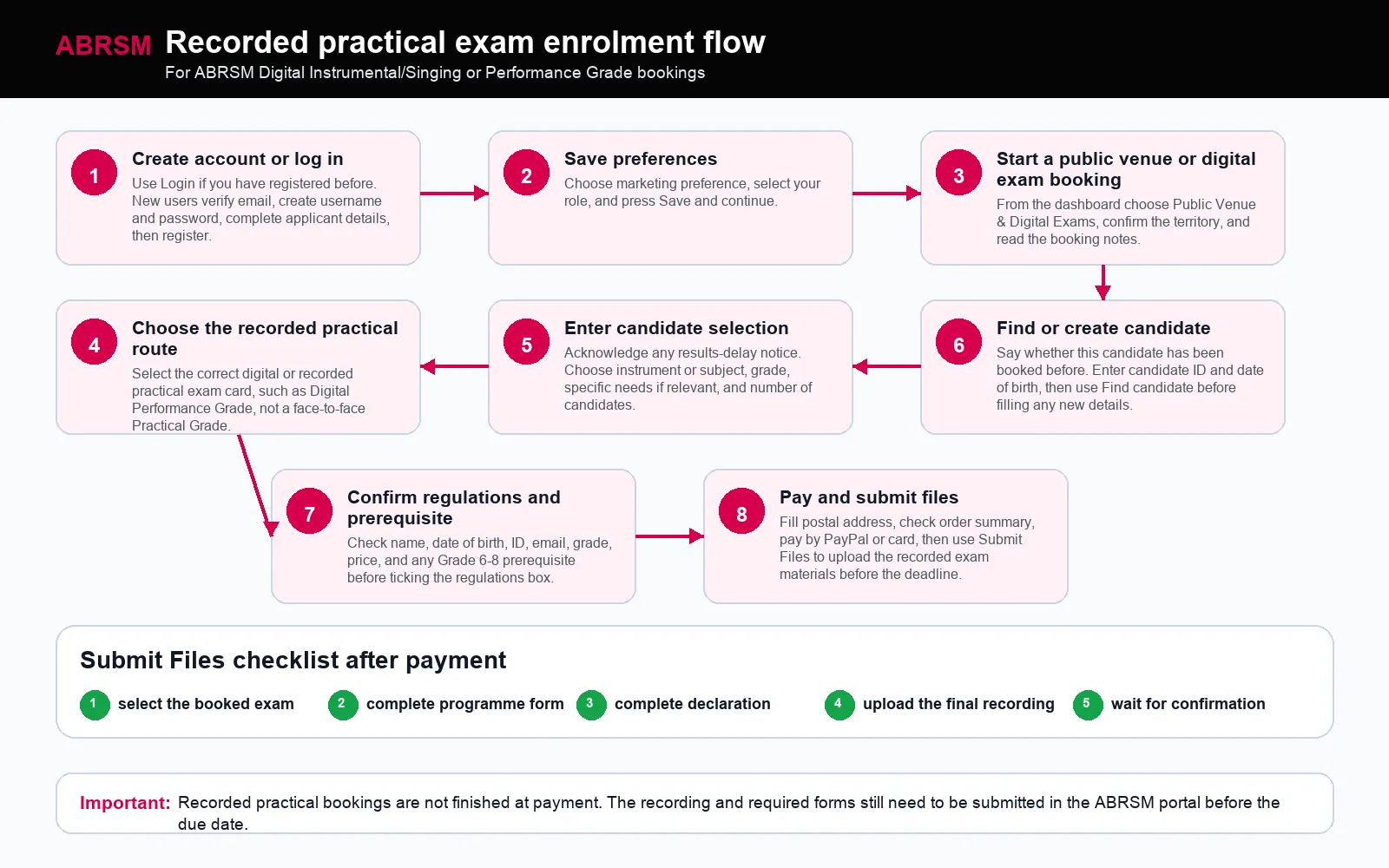
Use this as the big picture: create or log in to the account, choose the correct digital practical route, enter candidate details, pay, then submit files.
Create or log in to an ABRSM account
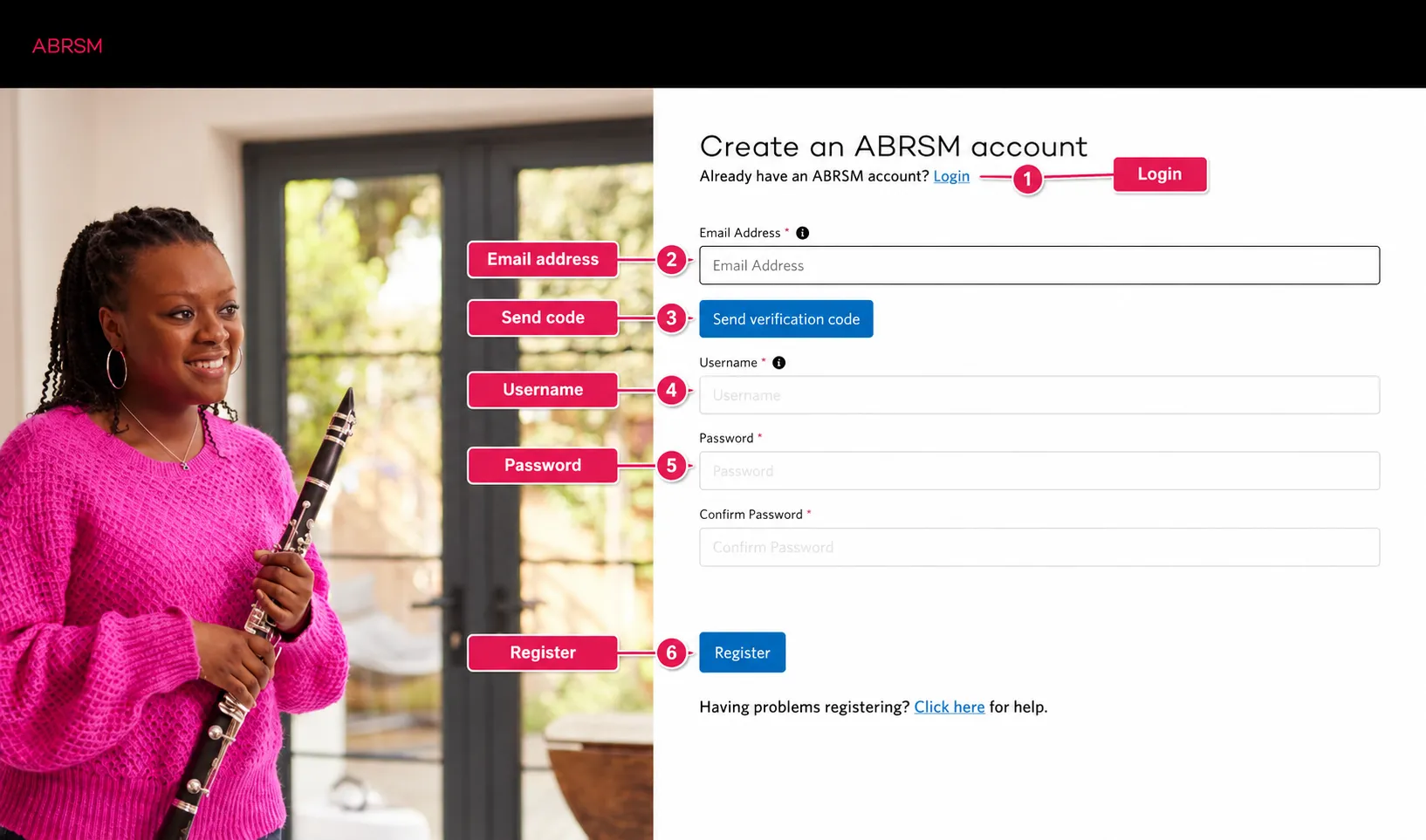
If you already have an ABRSM account, press Login. If this is your first time, enter your email address and press Send verification code.
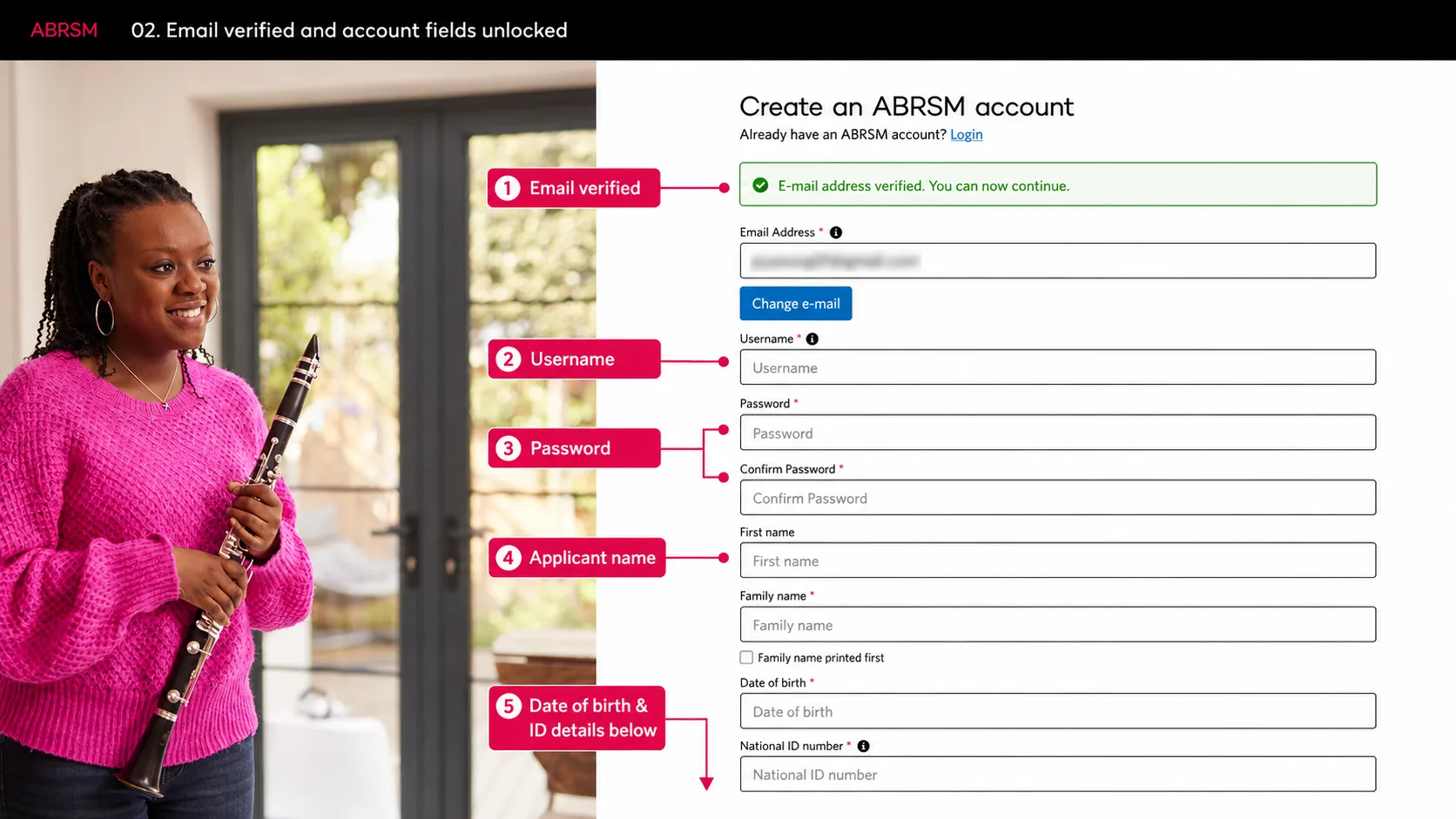
After the email is verified, fill in the username, password, applicant name, date of birth, and National ID fields.
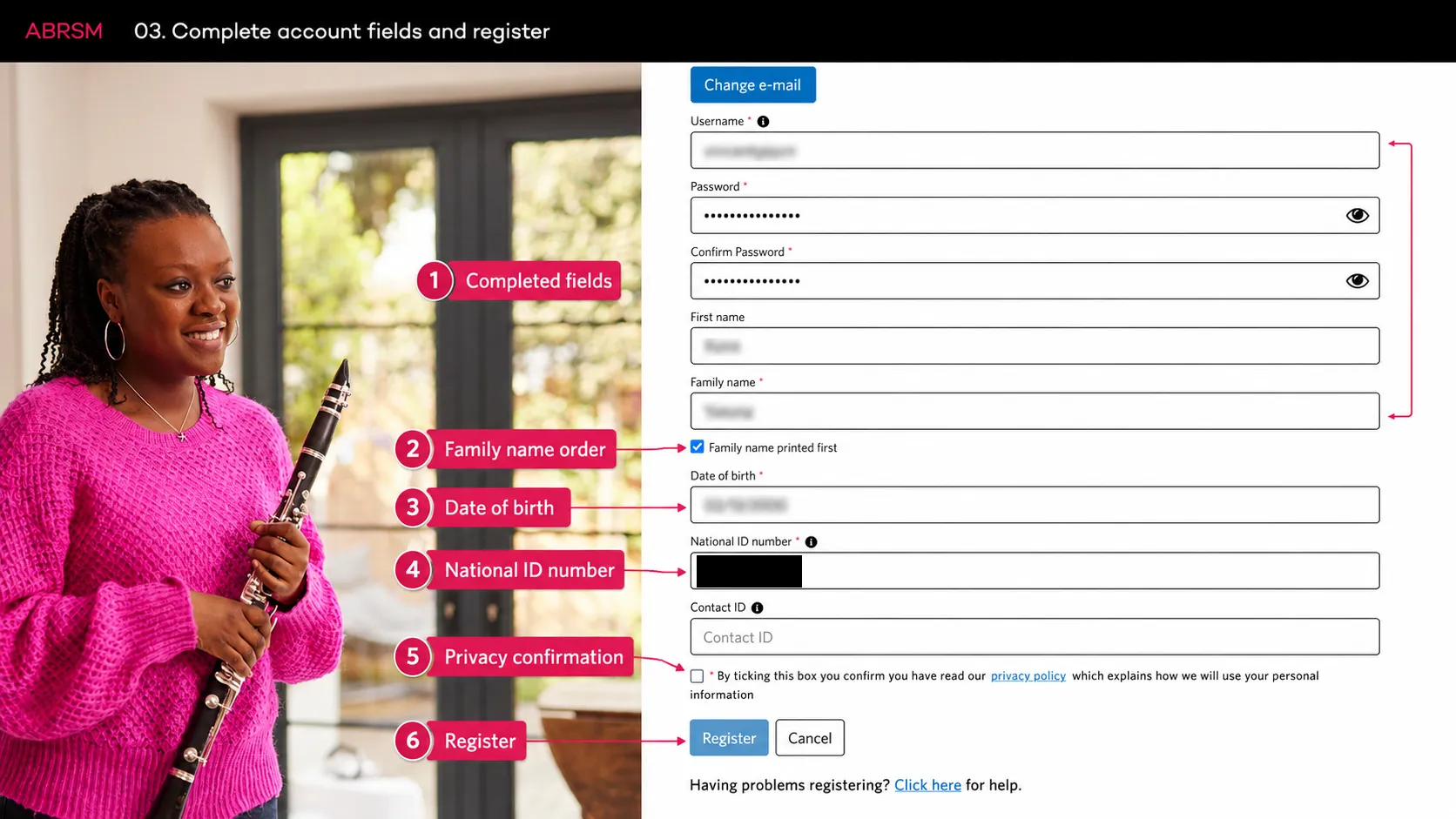
Check the applicant details before ticking the privacy confirmation. Press Register only when the required fields are complete.
Save preferences and start the booking
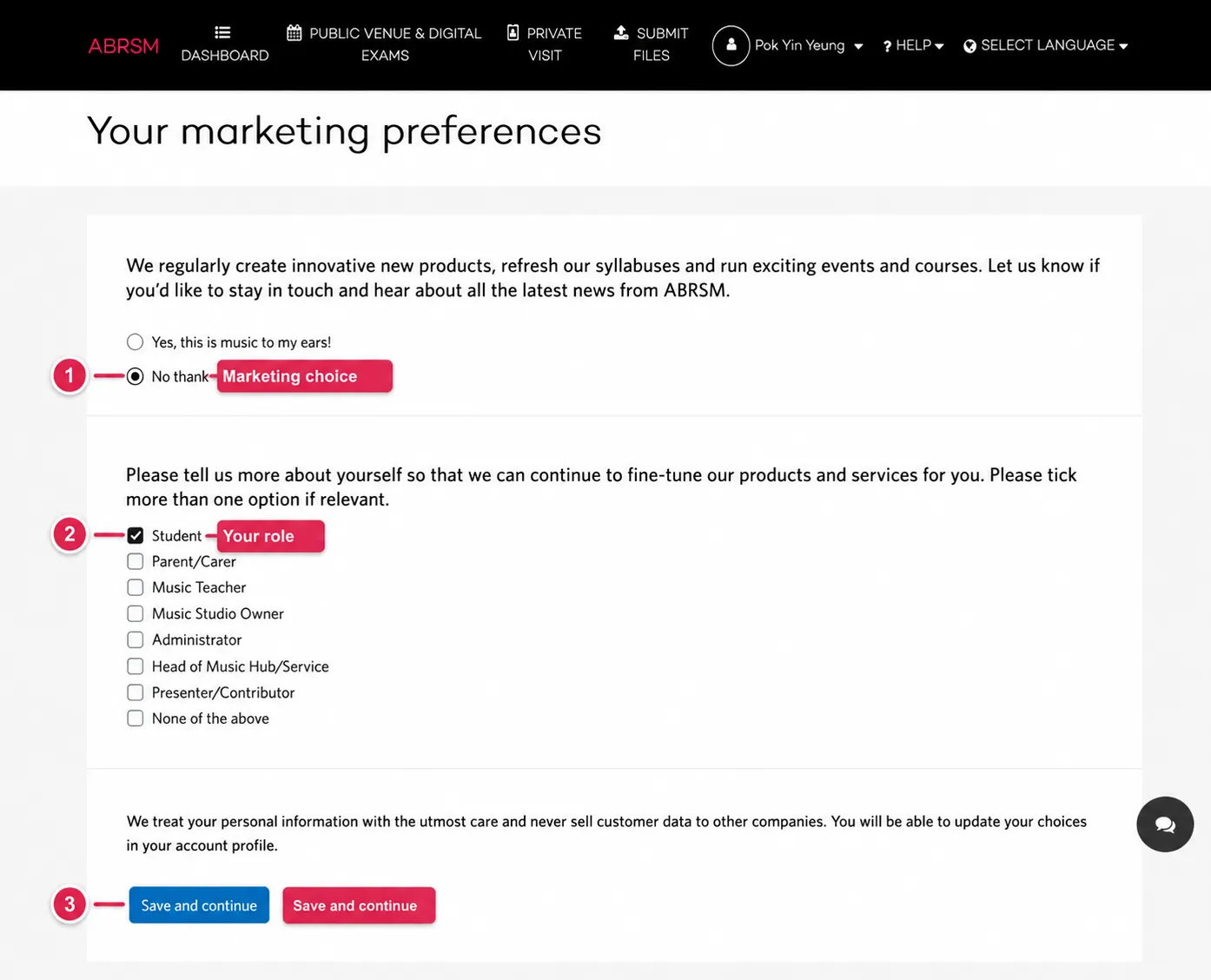
ABRSM may ask for marketing preferences after registration. Choose whether to receive updates, tick your role, and press Save and continue.
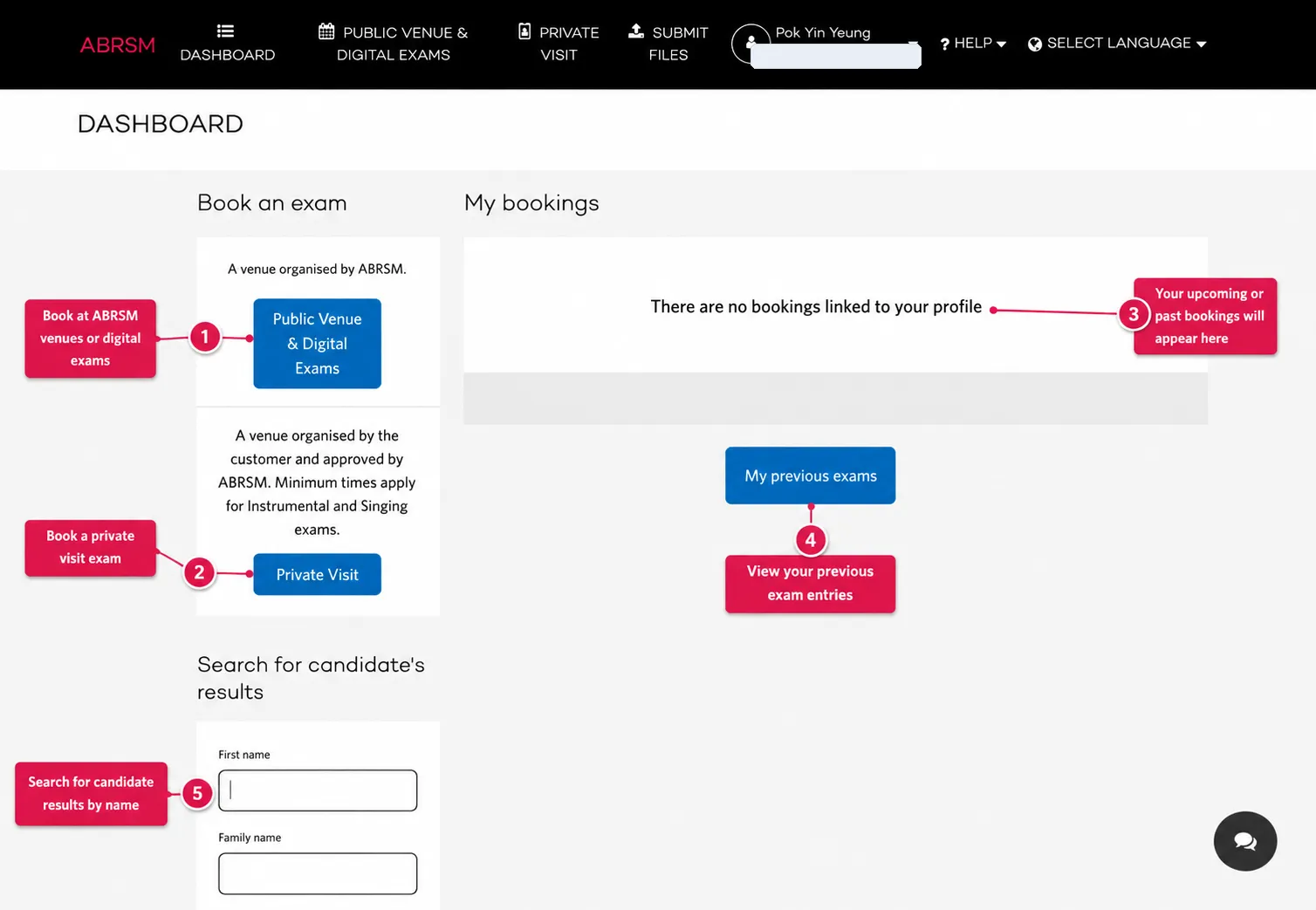
On the dashboard, choose Public Venue & Digital Exams.
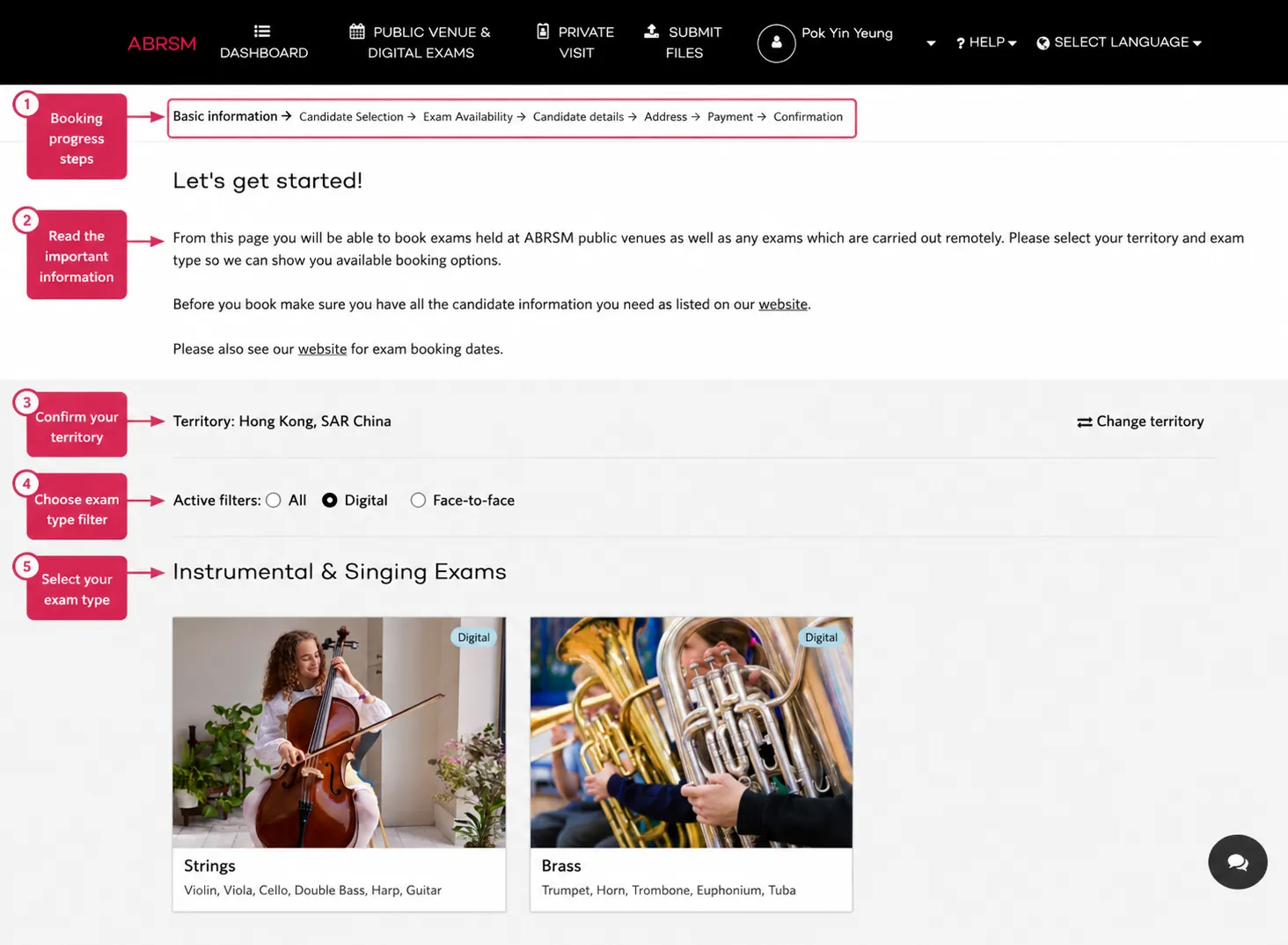
Confirm the territory, such as Hong Kong, SAR China. Territory affects available exams, prices, dates, and payment details.
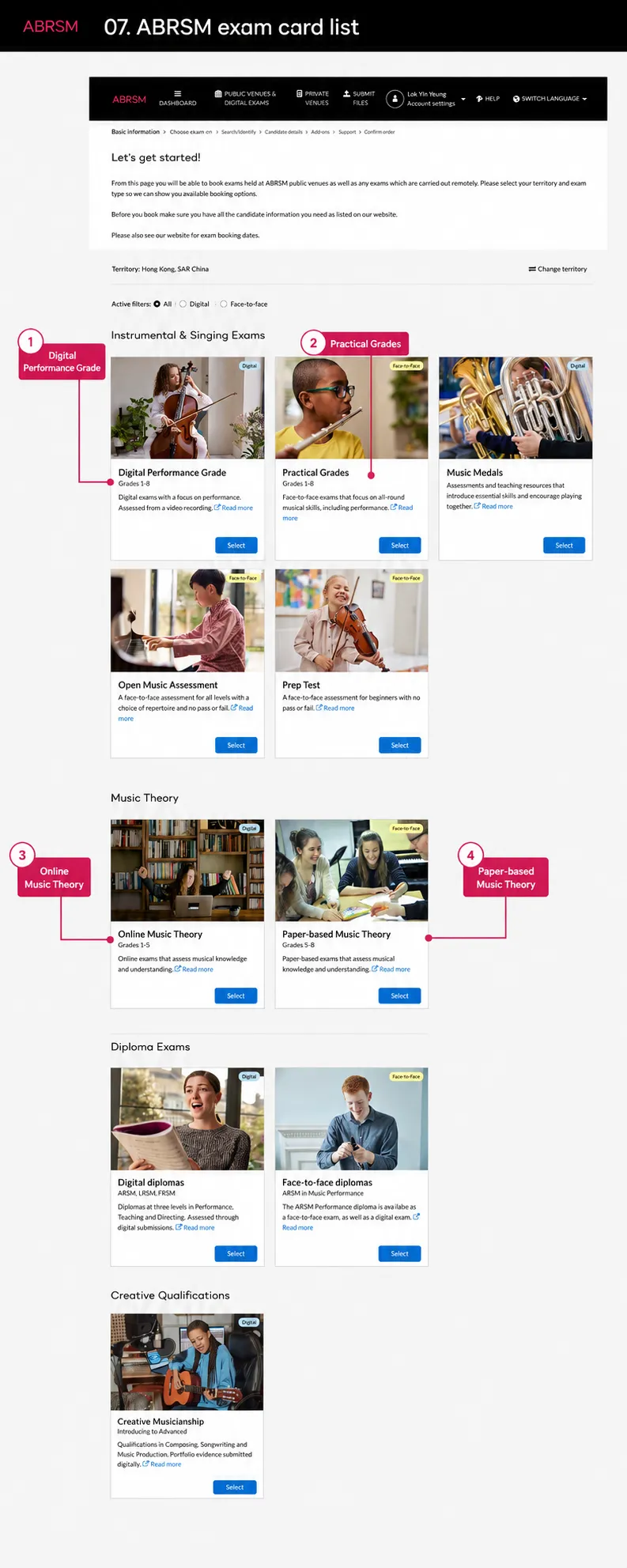
Choose the recorded practical or digital performance route. Do not choose Practical Grades unless you intend to book a face-to-face practical exam.
Candidate selection
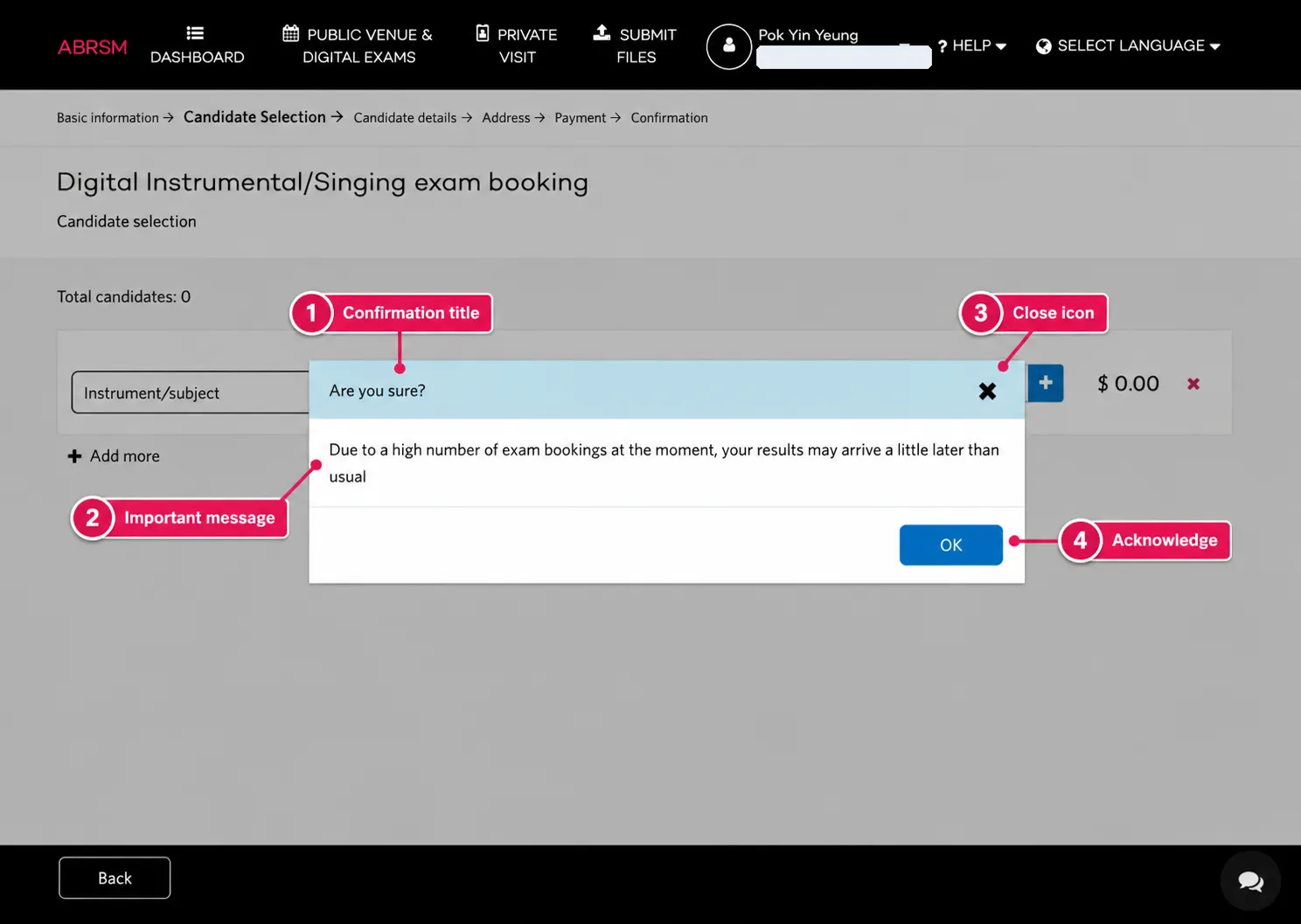
ABRSM may show a message about results taking longer than usual. Read it and press OK.
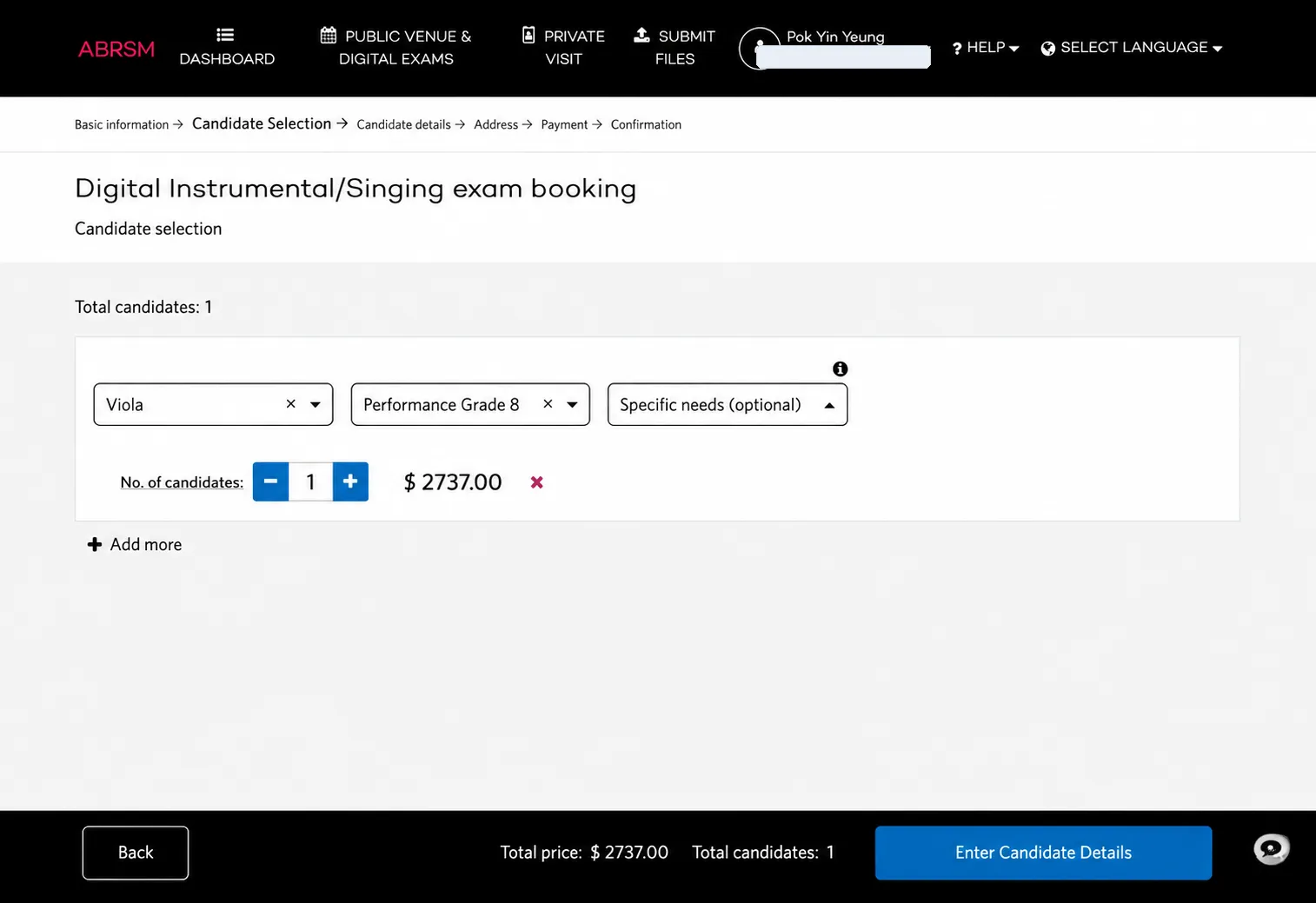
On Candidate selection, choose the instrument or subject, choose the grade, set the number of candidates, and check the price.
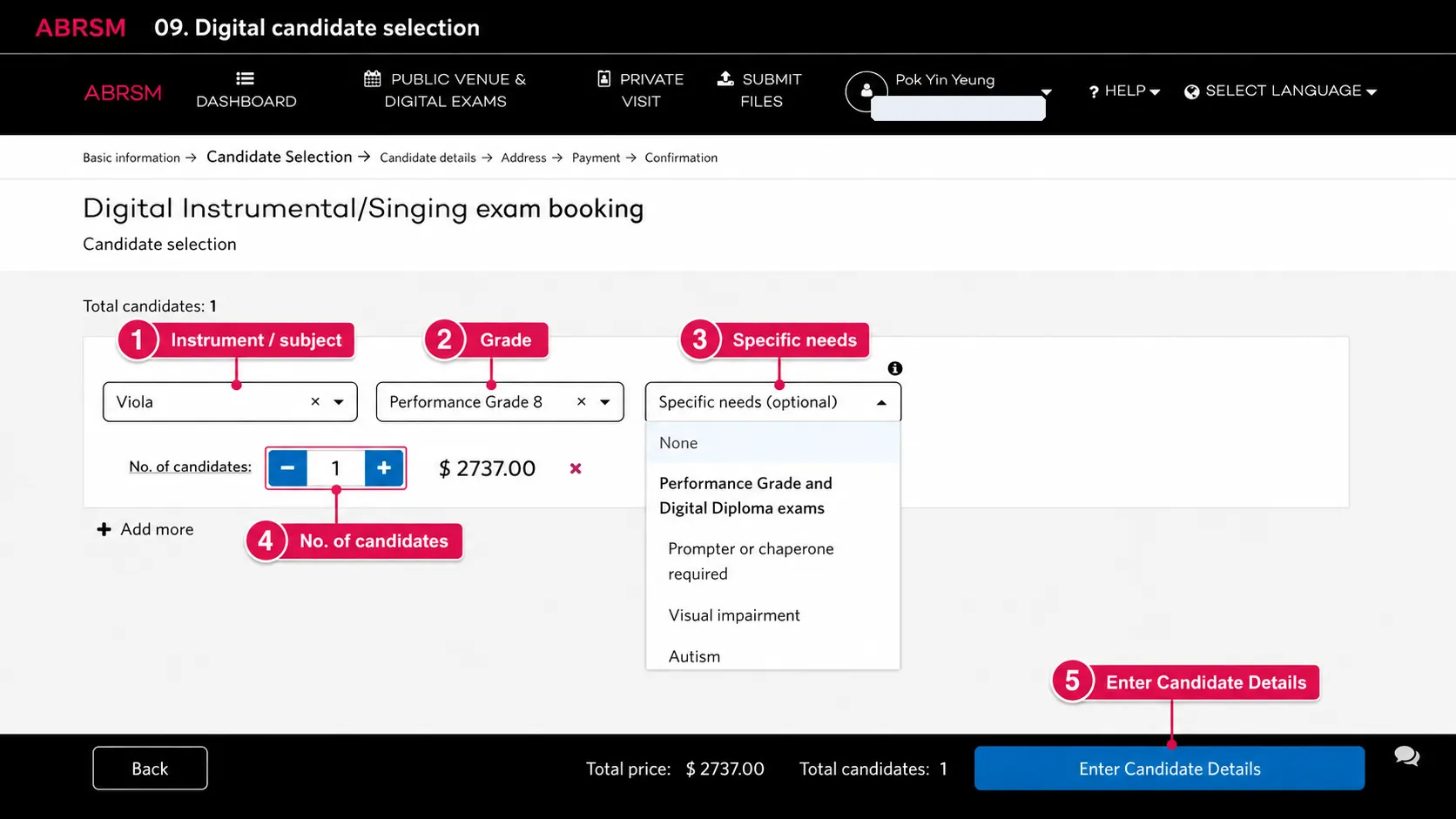
Use Specific needs carefully. If the candidate needs an access arrangement, choose the correct option and check ABRSM’s supporting-document instructions. If no arrangement is needed, choose None where the portal asks for it.
Press Enter Candidate Details when the row is correct.
Candidate details and payment
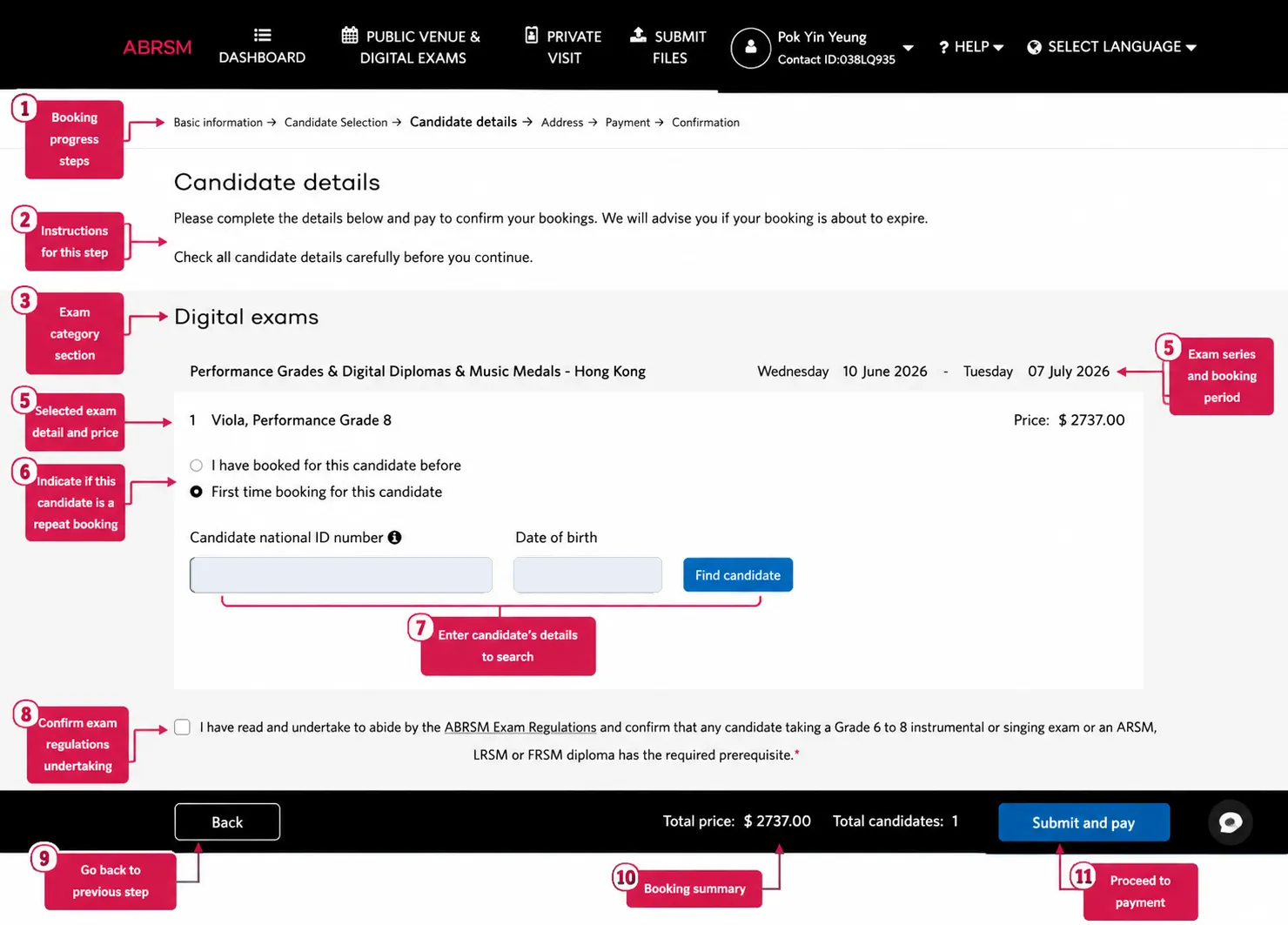
Choose whether this candidate has been booked before. Enter the candidate National ID number and date of birth, then press Find candidate.
If ABRSM does not find the candidate, complete the candidate details. Check the candidate name, date of birth, National ID number, email address, certificate display name, selected exam, grade, price, and booking window before continuing.
Tick the regulations and prerequisite confirmation only after checking the details. Press Submit and pay.
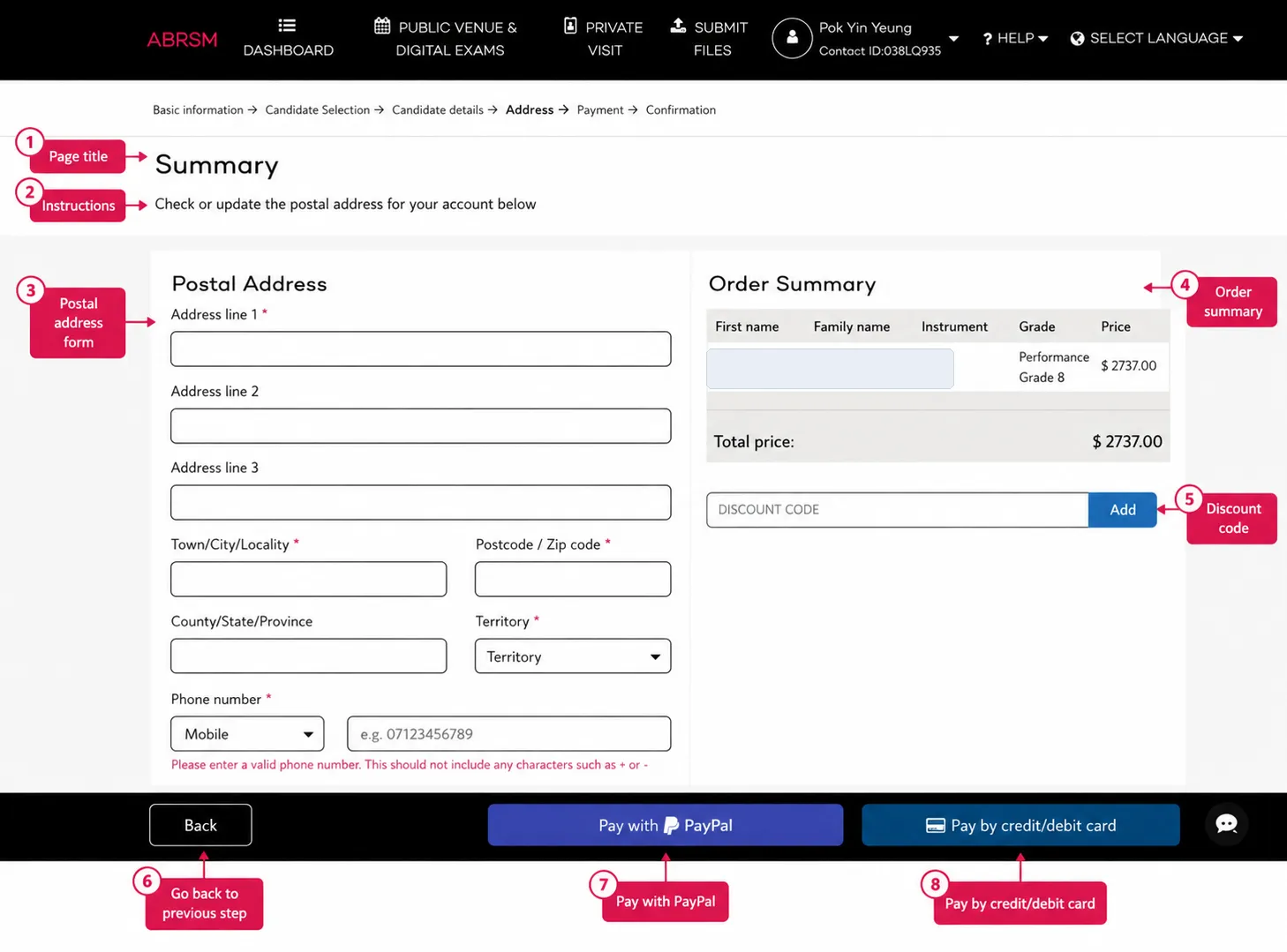
Fill the postal address and phone number. If the portal warns that the phone number should not include characters such as + or -, enter digits only.
Check the order summary, add a discount code if you have one, then pay by PayPal or credit/debit card. Wait for ABRSM’s confirmation page and confirmation email.
Submit files after payment
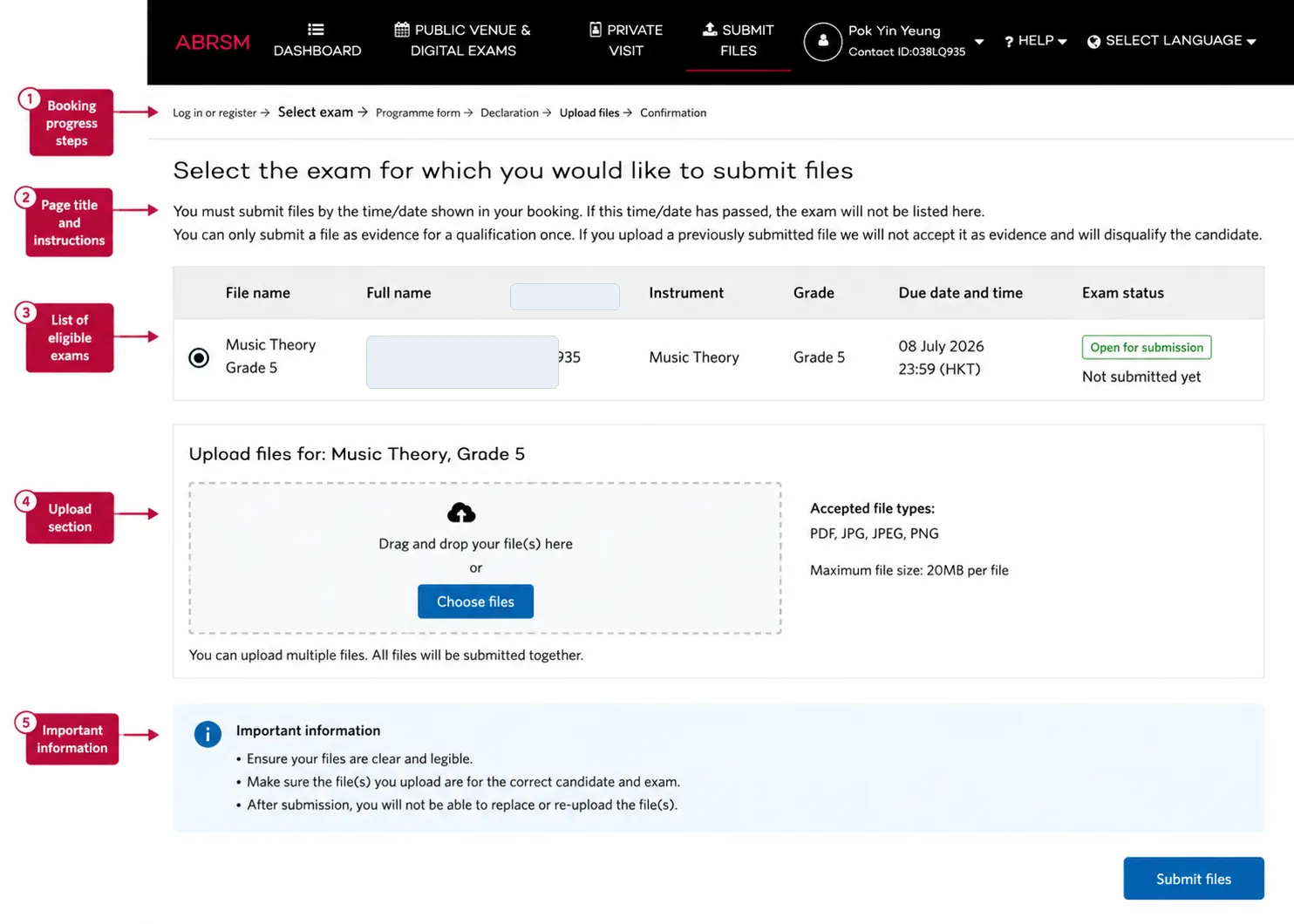
For recorded practical exams, payment is not the final step. Go to Submit Files and select the booked exam.
Complete the programme form, declaration, and upload steps. Before submitting, check that:
- the recording is the final chosen take
- the file opens and plays from beginning to end
- the candidate is visible
- the sound is clear
- the file matches the programme form
- the upload is for the correct candidate and exam
- the submission is before the due date and time shown in the portal
Wait for the file-submission confirmation. Do not assume the upload is complete just because the file was selected from your computer.
Final check
Before payment or file submission, slow down and confirm the ABRSM account, territory, exam route, instrument, grade, candidate name, date of birth, National ID, email address, certificate display name, specific-needs option, price, and prerequisite status.
This form is part of the exam preparation. A careful check now protects the candidate from avoidable stress later.