【教學】ABRSM 錄影 Practical Exam 報名及交片指南

香港考生適用的 ABRSM 錄影 Practical Exam 報名指南,逐步說明登入或建立帳戶、選擇考試、填寫考生資料、付款,以及 Submit Files 交片流程。
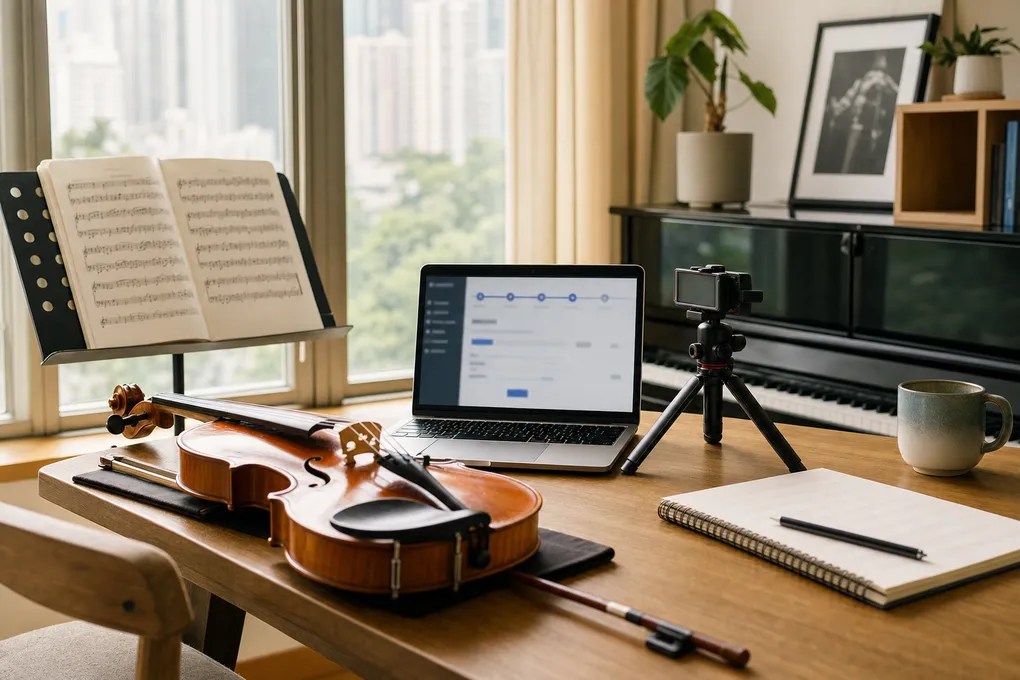
ABRSM 錄影 Practical Exam 的報名流程,不是付款後就完結。網上系統會先確認考試 booking,之後還要到 Submit Files 上載錄影片段和相關表格,並且要在限期前完成。

這篇文章根據 2026 年 6 月 10 日截圖整理,適合香港考生或家長報考 ABRSM 錄影 Practical route,例如 Digital Instrumental/Singing 或 Performance Grade。

開始前,先到 ABRSM Public Venue and Digital Exams portal:https://portal.abrsm.org/PublicVenue

如果你以前已經註冊過 ABRSM 帳戶,第一個畫面請按 Login,不要重新開新帳戶。這樣可以避免舊有考生、booking 和成績分散在不同 account。

開始前準備

打開報名表之前,先準備好:

  • ABRSM account email、username 和 password
  • 申請人 first name、family name、出生日期和身份證明文件號碼
  • 考生正式英文姓名
  • 考生出生日期和身份證明文件號碼
  • 考生 email
  • 樂器或科目
  • 錄影 practical exam route 和 grade
  • 如有需要,access arrangement 或 specific need
  • 郵寄地址和電話號碼
  • 信用卡、扣帳卡或 PayPal
  • 如有,discount code
  • 之後交片用的 final recording、programme information 和 declaration 資料

如果報考 Grade 6-8 instrumental 或 singing exam,付款前要先確認考生已符合 ABRSM prerequisite。不要把 regulations checkbox 當成普通同意按鈕。

錄影 practical exam 流程總覽
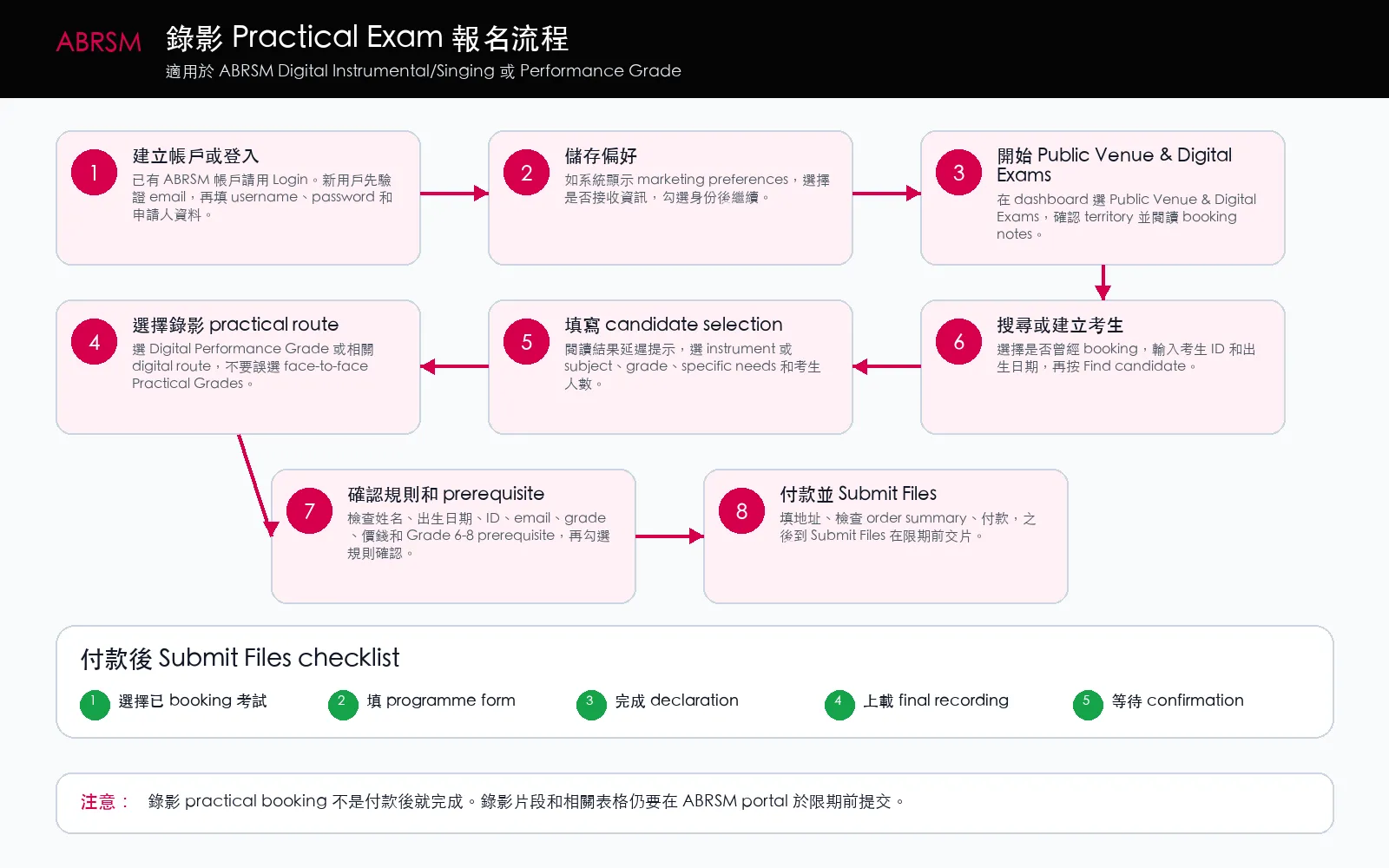
ABRSM 錄影 practical exam 報名流程圖,顯示登入或建立帳戶、Public Venue and Digital Exams、選擇錄影 practical route、填寫考生資料、付款,以及 Submit Files 交片。
ABRSM 錄影 practical exam 報名流程:登入或建立帳戶,選擇錄影 practical route,填寫考生資料,付款,並在限期前 Submit Files 交片。

大方向是:登入或建立帳戶,選擇正確的 digital practical route,填寫考生資料,付款,然後交片。

建立或登入 ABRSM 帳戶
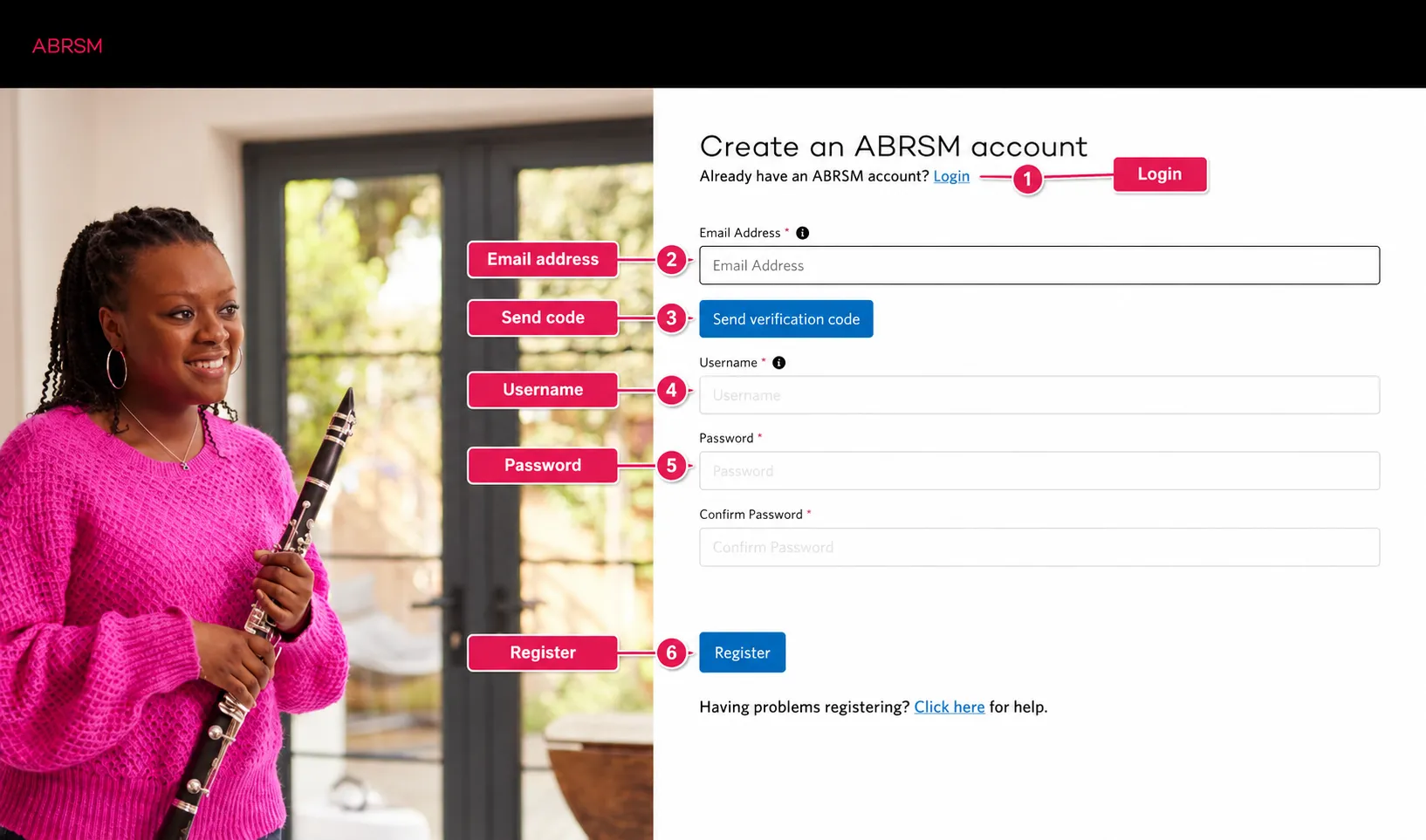
ABRSM 建立帳戶畫面,顯示 Login 連結、email address、send verification code、username、password 和 Register 按鈕。
ABRSM 建立帳戶畫面:已有帳戶的用戶應按 Login,新用戶才輸入 email 並要求 verification code。

已有 ABRSM 帳戶就按 Login。第一次使用才輸入 email address,然後按 Send verification code

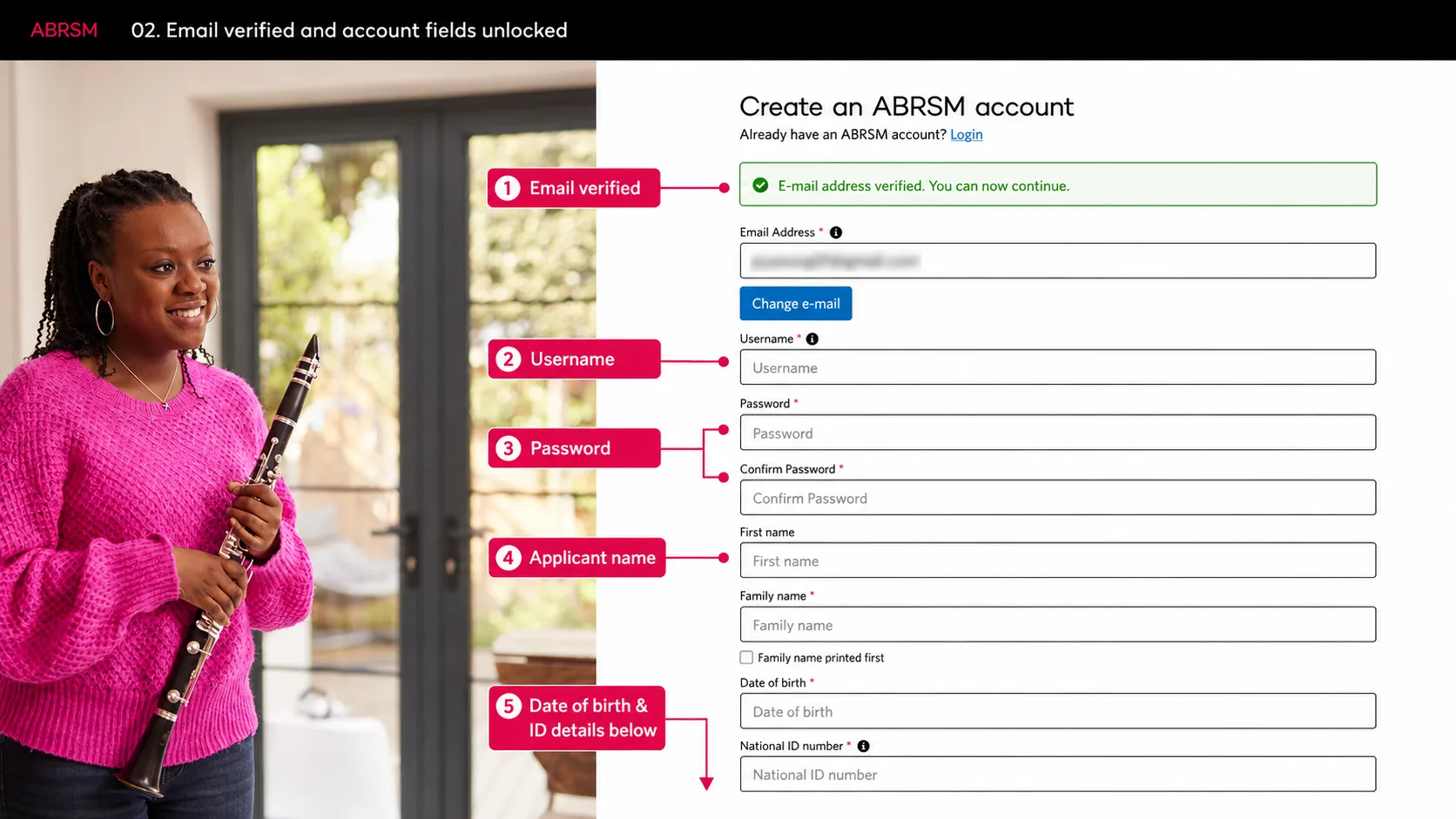
ABRSM email 驗證後的帳戶畫面,顯示 email verified 訊息,以及 username、password、申請人姓名、出生日期和 National ID 欄位。
ABRSM email 驗證畫面:email verified 後,填寫 username、password、申請人姓名、出生日期和 National ID。
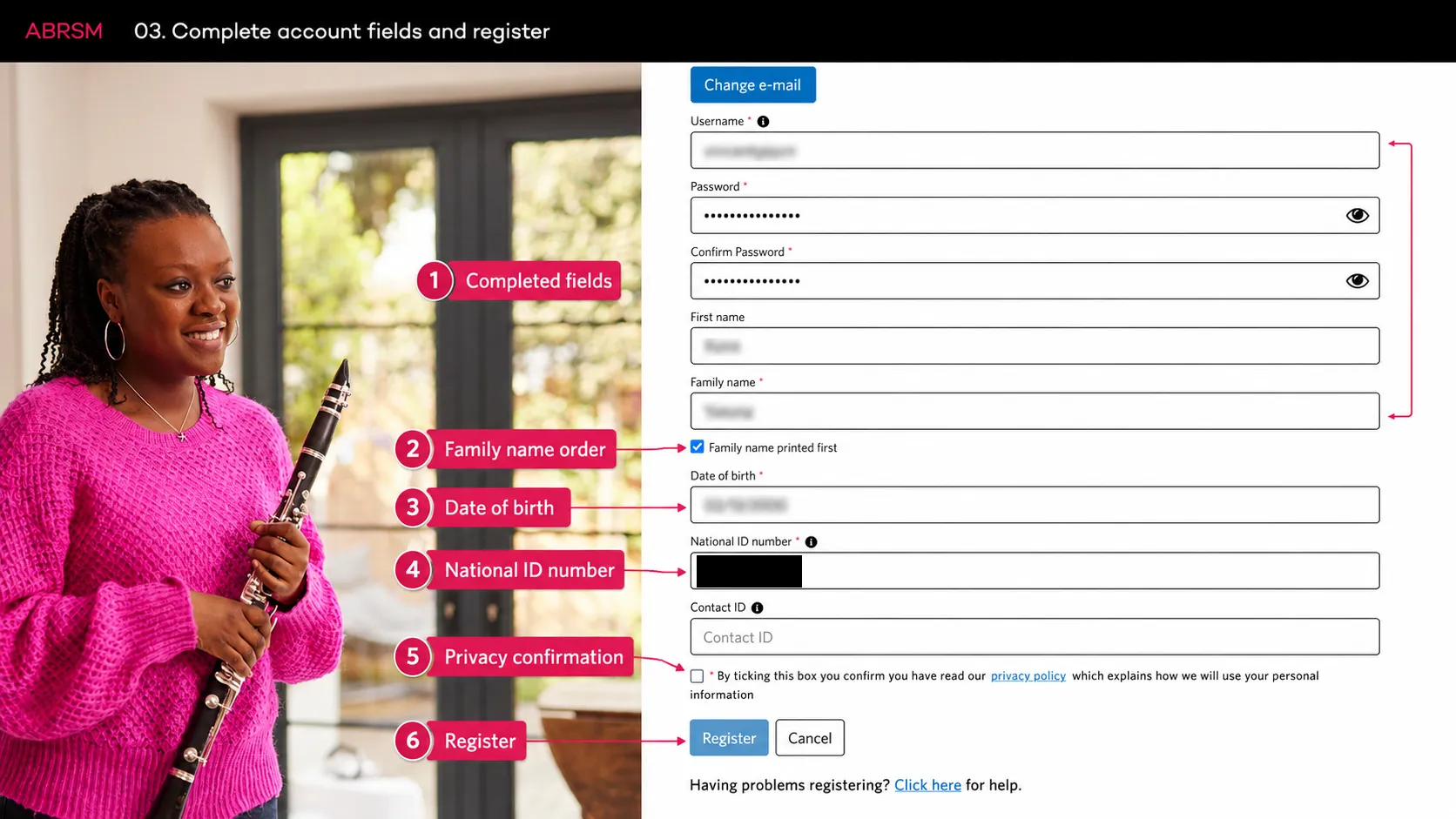
完成 email 驗證後,填 username、password、申請人姓名、出生日期和 National ID。

ABRSM 完成註冊畫面,顯示已填好的 account fields、family name order、privacy confirmation checkbox 和 Register 按鈕。
ABRSM 完成註冊畫面:檢查申請人資料,按需要選擇 family name order,勾選 privacy confirmation,然後按 Register。

檢查資料後才勾選 privacy confirmation,所有必填欄位完成後按 Register

儲存偏好並開始 booking

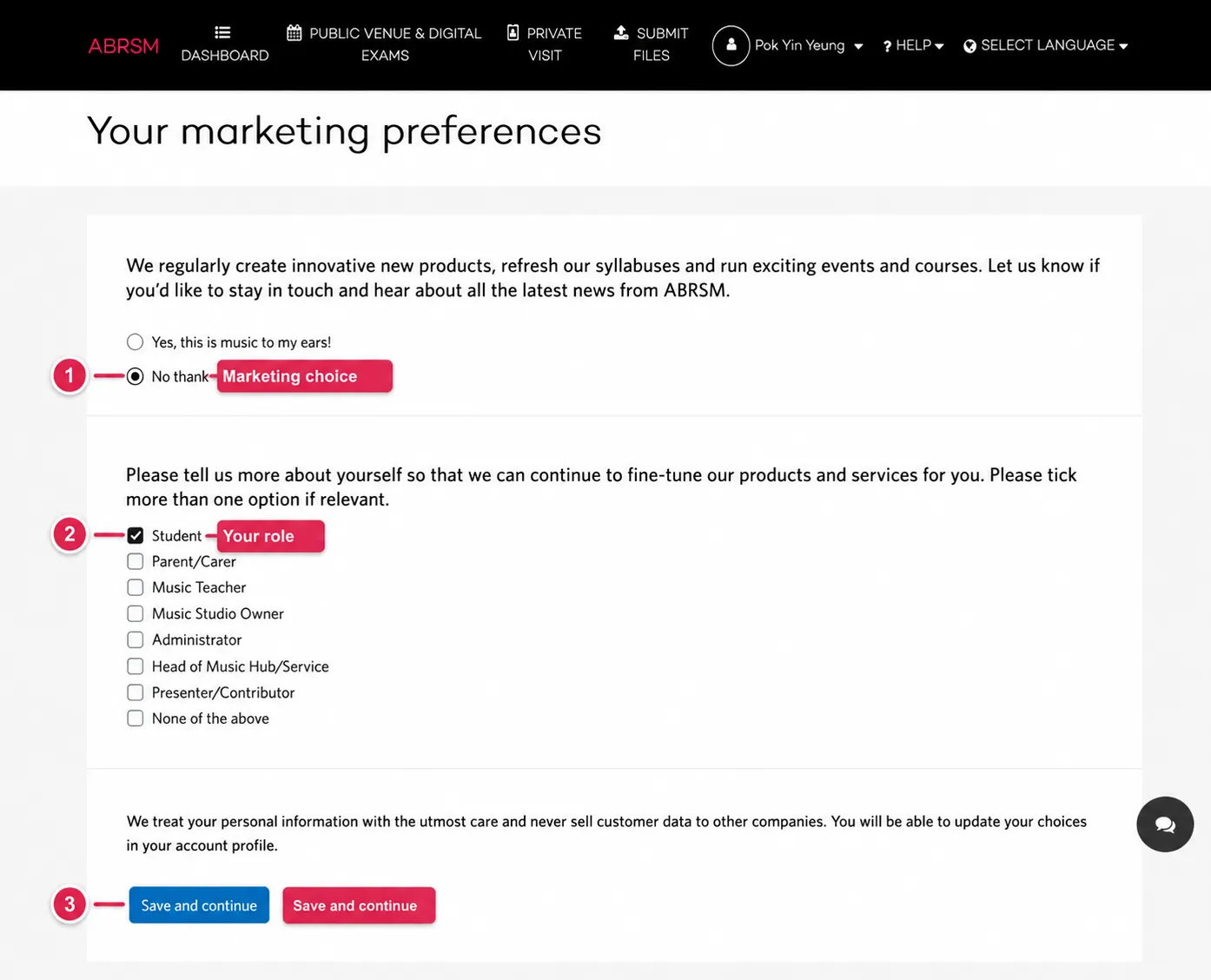
ABRSM marketing preferences 畫面,顯示 marketing choice、role checkboxes 和 Save and continue 按鈕。
ABRSM marketing preferences 畫面:選擇是否接收 ABRSM updates,勾選你的身份,然後 Save and continue。

ABRSM 可能會要求你選擇 marketing preferences。選擇是否接收資訊,勾選你的身份,然後按 Save and continue

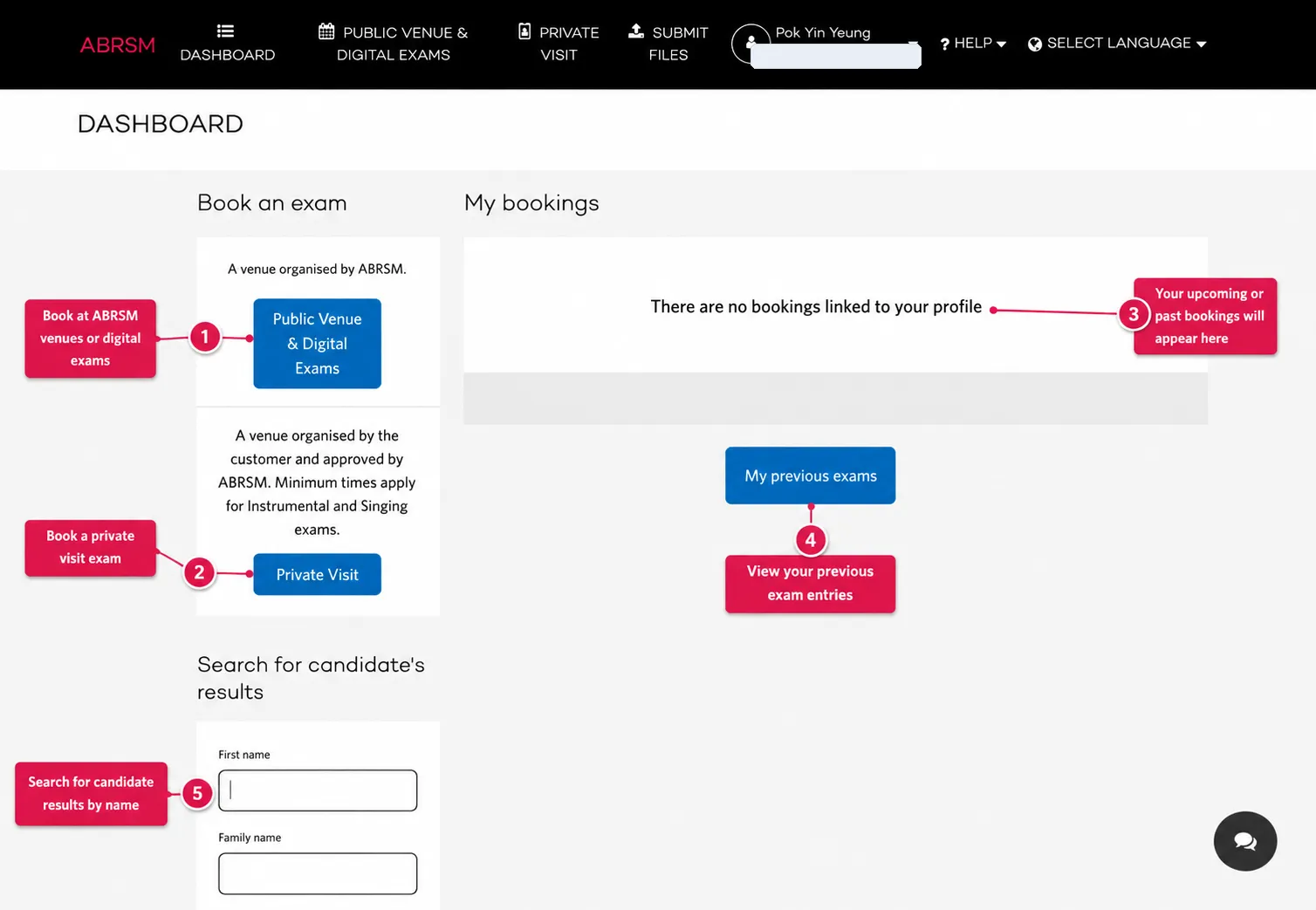
ABRSM dashboard 畫面,顯示 Public Venue and Digital Exams、Private Visit、My bookings、previous exams 和 candidate results search。
ABRSM dashboard:選擇 Public Venue and Digital Exams,以報考錄影 practical 或 digital exams。

在 dashboard 選擇 Public Venue & Digital Exams

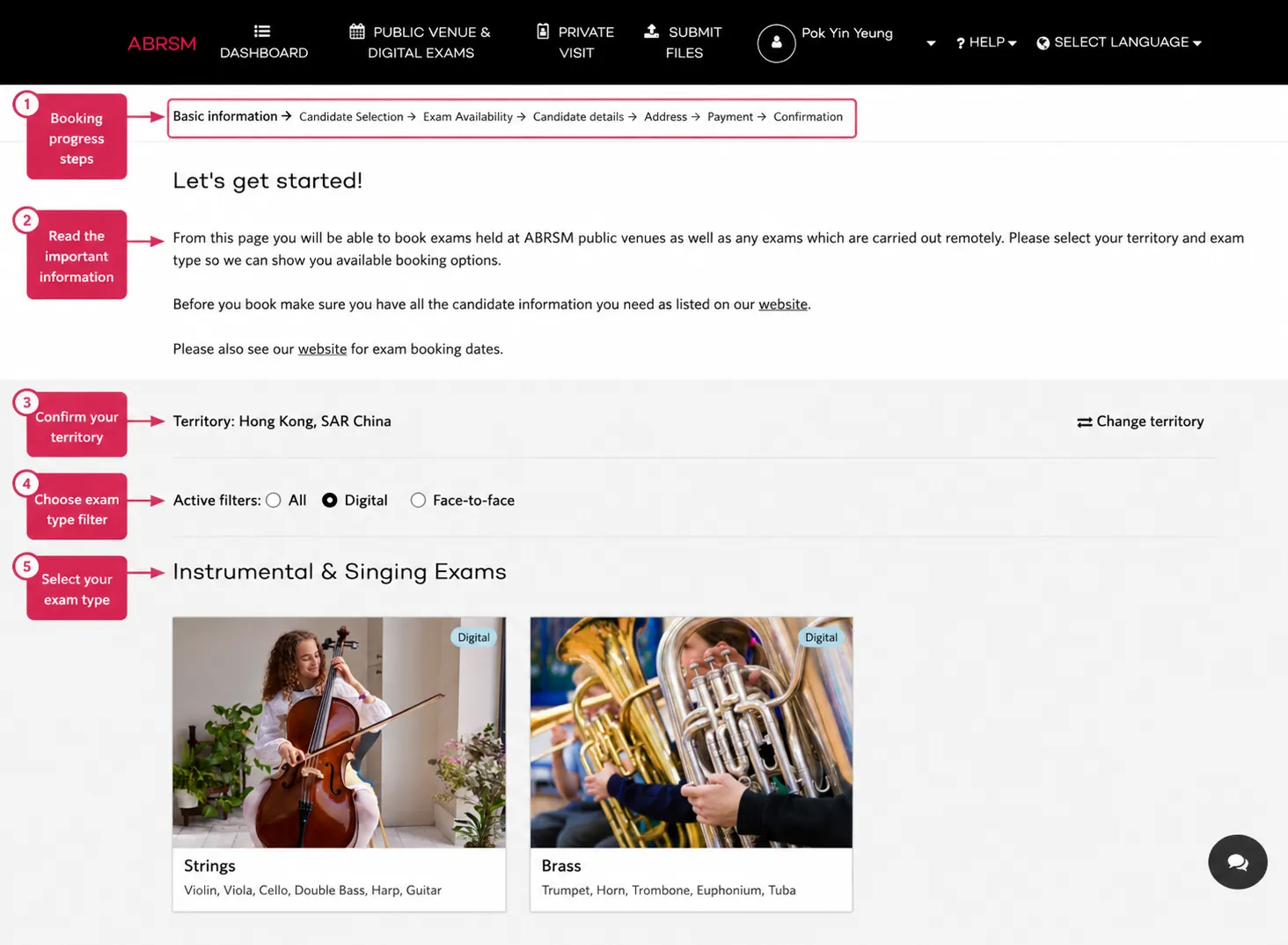
ABRSM basic information 畫面,顯示 booking progress、territory、active filters 和 instrumental and singing exam card list。
ABRSM basic information 畫面:確認 territory,選擇合適 filter,再開始選擇考試 route。

確認 territory,例如 Hong Kong, SAR China。地區會影響可報考的考試、價錢、日期和付款資料。
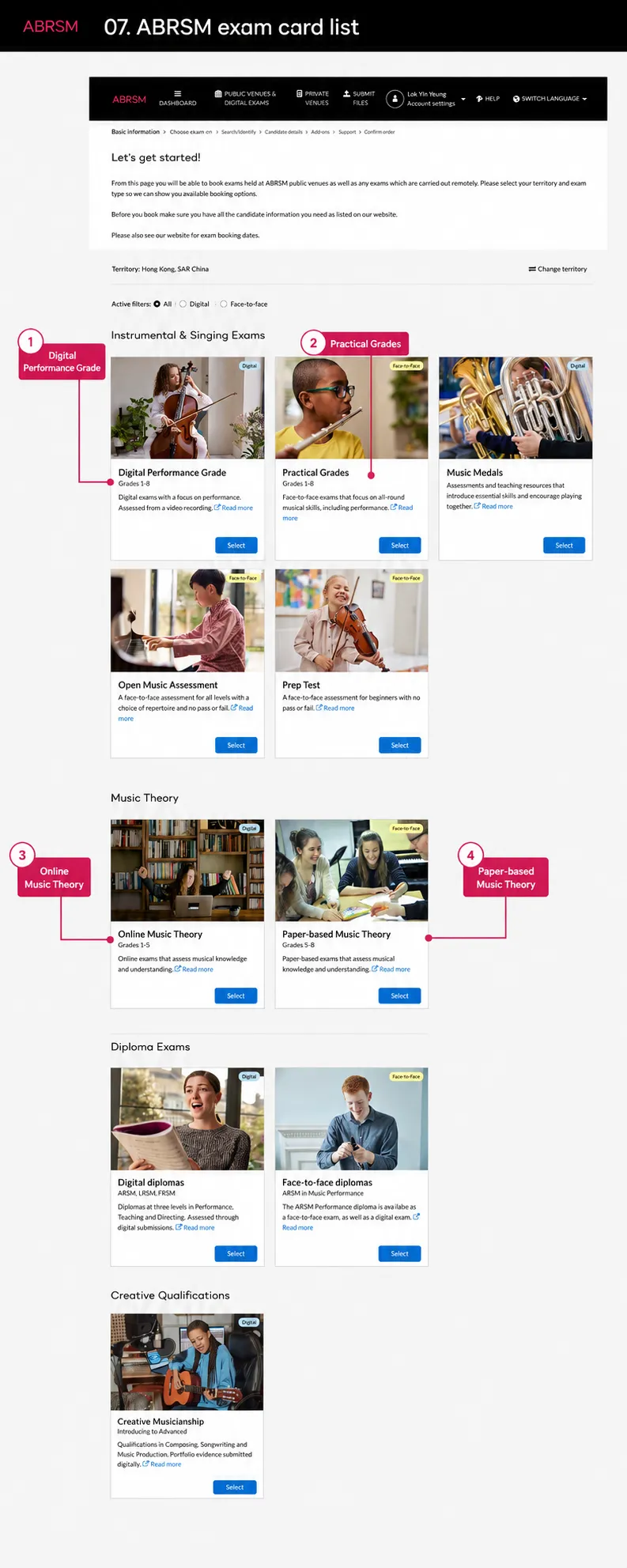
ABRSM exam card list 畫面,顯示 Digital Performance Grade、Practical Grades、Online Music Theory、Paper-based Music Theory、diplomas 和 creative qualifications。
ABRSM exam card list:錄影 practical exam 應選 Digital Performance Grade 或相關 digital route,不要誤選 face-to-face Practical Grades。

選擇錄影 practical 或 digital performance route。除非你要報現場考,否則不要選 Practical Grades

Candidate selection

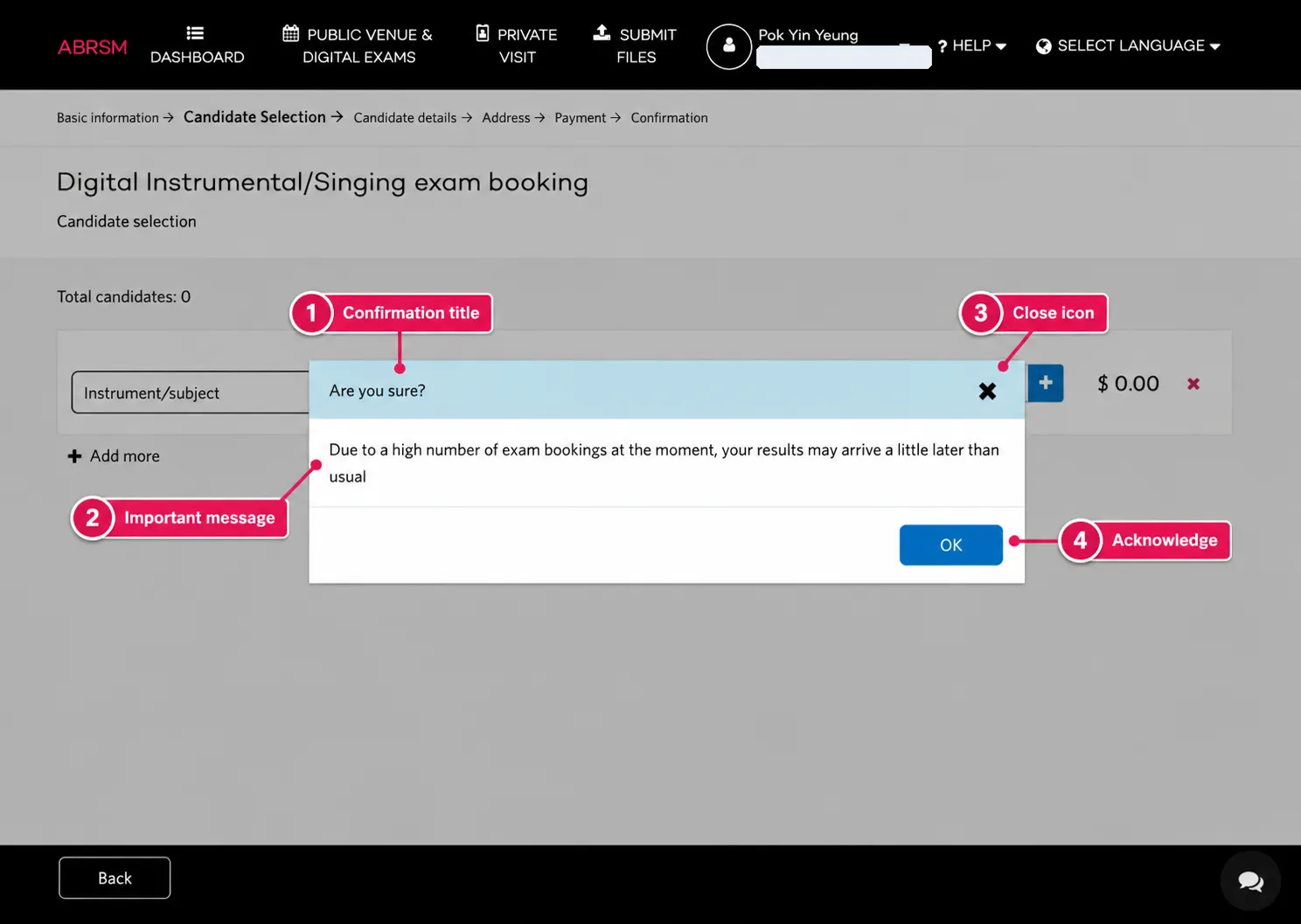
ABRSM 錄影 practical booking notice,顯示 results-delay message 和 OK 按鈕。
ABRSM 錄影 practical booking notice:閱讀 results-delay message,然後按 OK 繼續。

ABRSM 可能會顯示結果延遲通知。讀完後按 OK

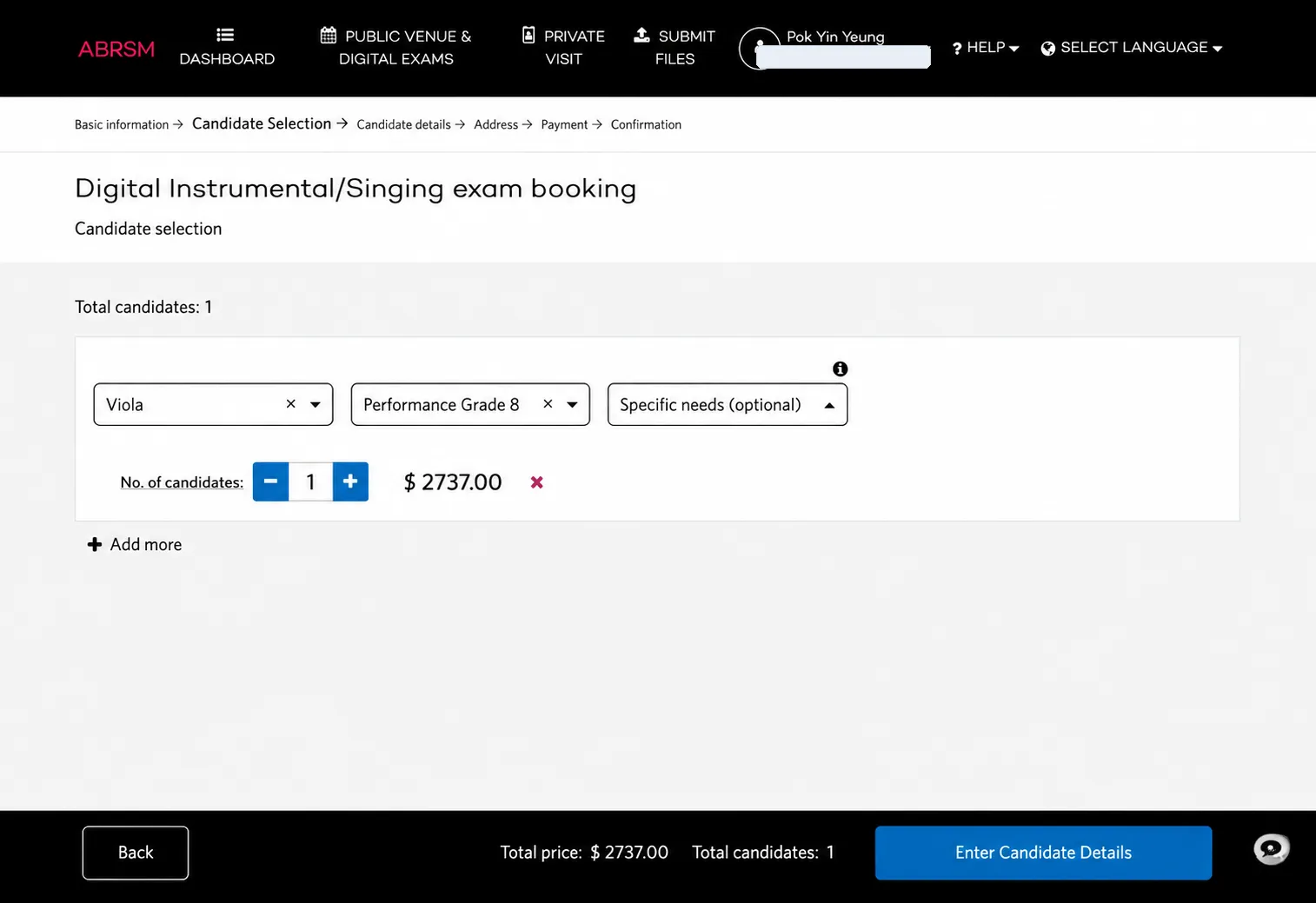
ABRSM 錄影 practical candidate selection 畫面,顯示 instrument、grade、specific needs、number of candidates、price 和 Enter Candidate Details 按鈕。
ABRSM 錄影 practical candidate selection:選擇 instrument 或 subject、grade、specific needs 和考生人數。

Candidate selection 選擇 instrument 或 subject,再選 grade,設定考生人數,並檢查價錢。
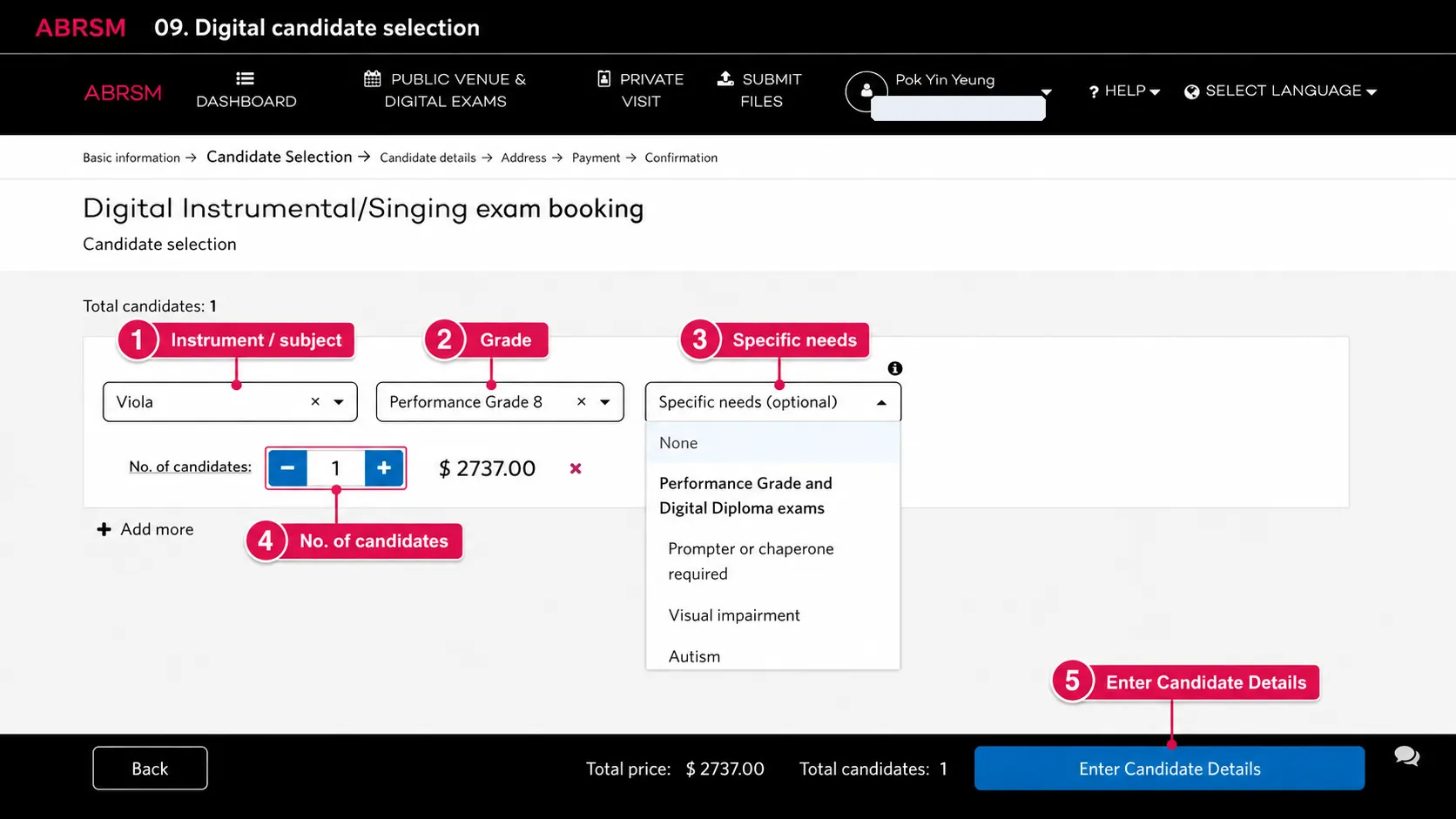
ABRSM 錄影 practical specific needs dropdown,顯示 None、prompter or chaperone、visual impairment、autism 和其他 access arrangement 選項。
ABRSM specific needs dropdown:如有 access arrangement,選擇正確選項;沒有 specific needs 則選 None。

Specific needs 要小心選。如果考生需要 access arrangement,選擇正確項目並查清楚 ABRSM 是否需要 supporting documents。沒有需要時,按系統要求選 None

確認資料正確後,按 Enter Candidate Details

考生資料與付款

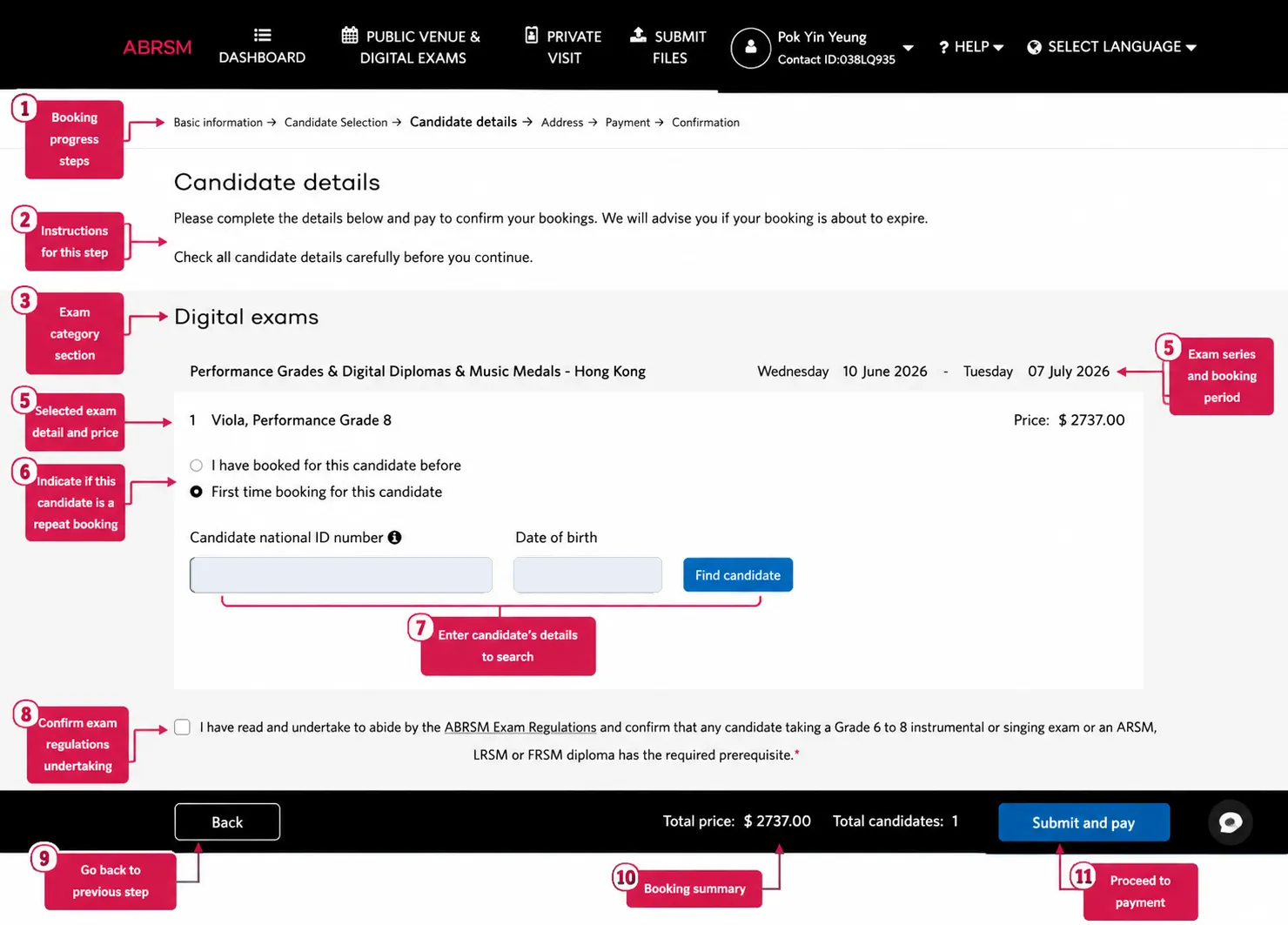
ABRSM 錄影 practical candidate details 畫面,顯示 booking progress、selected exam、repeat or first-time candidate choice、candidate lookup、regulations checkbox、total price 和 Submit and pay 按鈕。
ABRSM 錄影 practical candidate details:搜尋或建立考生,檢查考試資料,勾選 regulations confirmation,然後 submit and pay。

選擇這位考生是否曾經被 booking 過。輸入考生 National ID number 和 date of birth,然後按 Find candidate

如果系統找不到考生,就要填寫考生資料。繼續前請檢查考生姓名、出生日期、National ID、email、certificate display name、考試 route、grade、價錢和 booking window。

確認後才勾選 regulations 和 prerequisite confirmation,然後按 Submit and pay

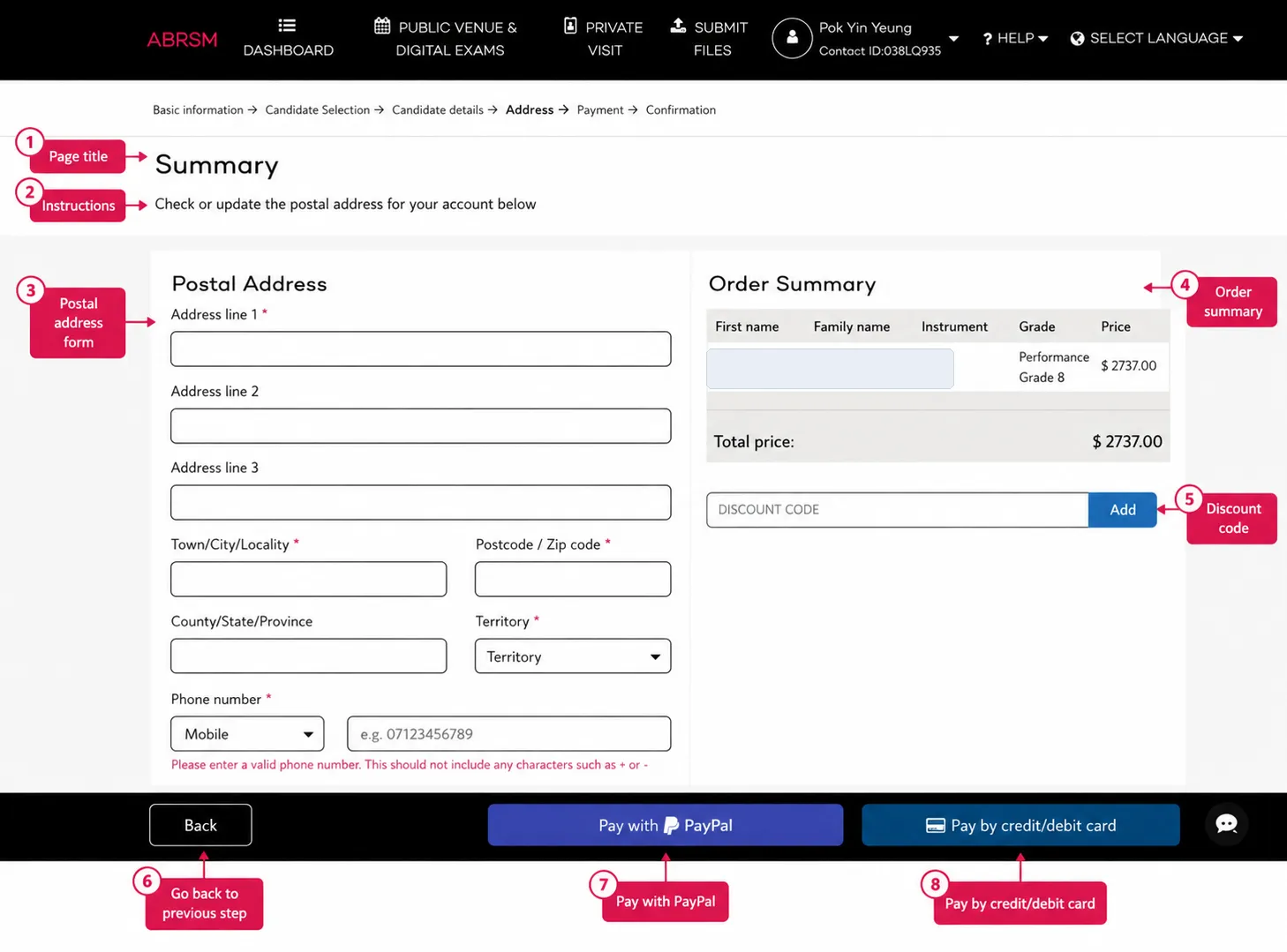
ABRSM 錄影 practical summary 畫面,顯示 postal address、order summary、discount code、PayPal 和 credit/debit card payment 按鈕。
ABRSM 錄影 practical payment summary:填寫 postal address,檢查 order summary,加入 discount code,然後用 PayPal 或 card 付款。

填寫 postal address 和 phone number。如果系統提示電話號碼不可包含 +-,就只輸入數字。

檢查 order summary,如有 discount code 就加入,然後用 PayPal 或 credit/debit card 付款。等待 ABRSM confirmation page 和 confirmation email。

付款後 Submit Files 交片
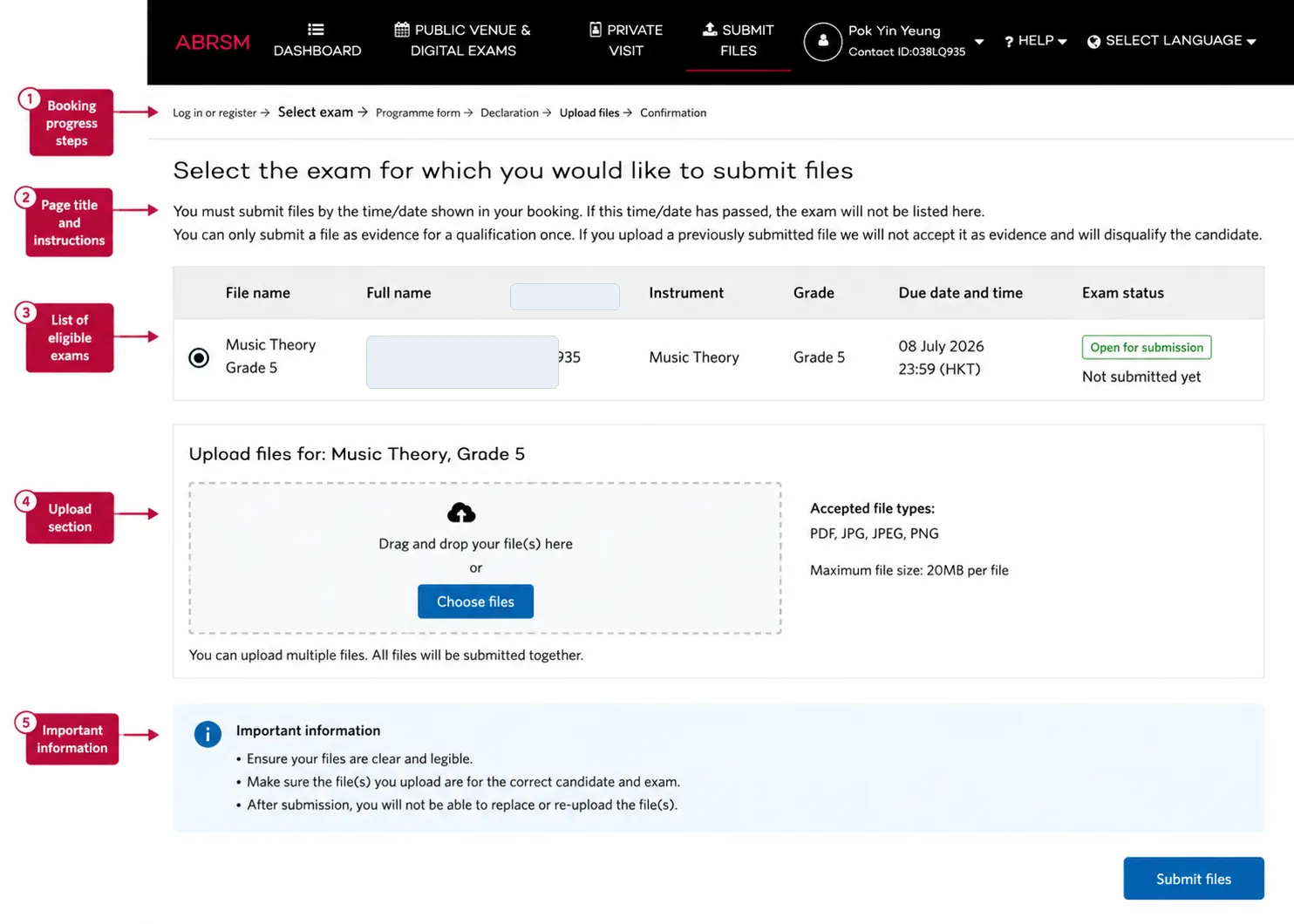
ABRSM Submit Files 畫面,顯示 selected exam、due date and time、exam status、upload area、accepted file types、important information 和 Submit files 按鈕。
ABRSM Submit Files 畫面:選擇已 booking 的錄影 practical exam,上載所需檔案,檢查 deadline,並在限期前 submit files。

錄影 practical exam 付款後仍未完成。到 Submit Files,選擇已 booking 的考試。

完成 programme form、declaration 和 upload steps。提交前檢查:

  • recording 是最後選定版本
  • 檔案能由頭到尾正常播放
  • 考生清楚可見
  • 聲音清楚
  • 檔案內容和 programme form 一致
  • upload 是屬於正確考生和考試
  • submission 在 portal 顯示的 due date and time 之前完成

等到 file-submission confirmation 才算完成。不要以為在電腦選了檔案就等於已經交片。

最後檢查

付款或交片前,慢一點檢查 ABRSM account、territory、exam route、instrument、grade、考生姓名、出生日期、National ID、email、certificate display name、specific-needs option、價錢和 prerequisite。

這些行政步驟也是考試準備的一部分。考前多花幾分鐘檢查,可以避免之後花更長時間補救。
下一步

舞台與排練室裡累積的經驗,帶回每一節課

Vincent 的教學建立在持續的演出實踐之上。若你希望找到一位既重視音樂感,也重視陪伴、溝通與真實演奏經驗的老師,歡迎從這裡開始認識。

WhatsApp 聯絡 +852 6702 8356